This article explains how to generate Westpac QuickStream REST API credentials and configure the Westpac QuickStream integration in OneBlink LcS.
TABLE OF CONTENTS
Generate Credentials
Step 1: Log in to your Westpac QuickStream Portal as an administrator.
Non-production portal: https://quickstream.support.qvalent.com/quickportal/LoginView
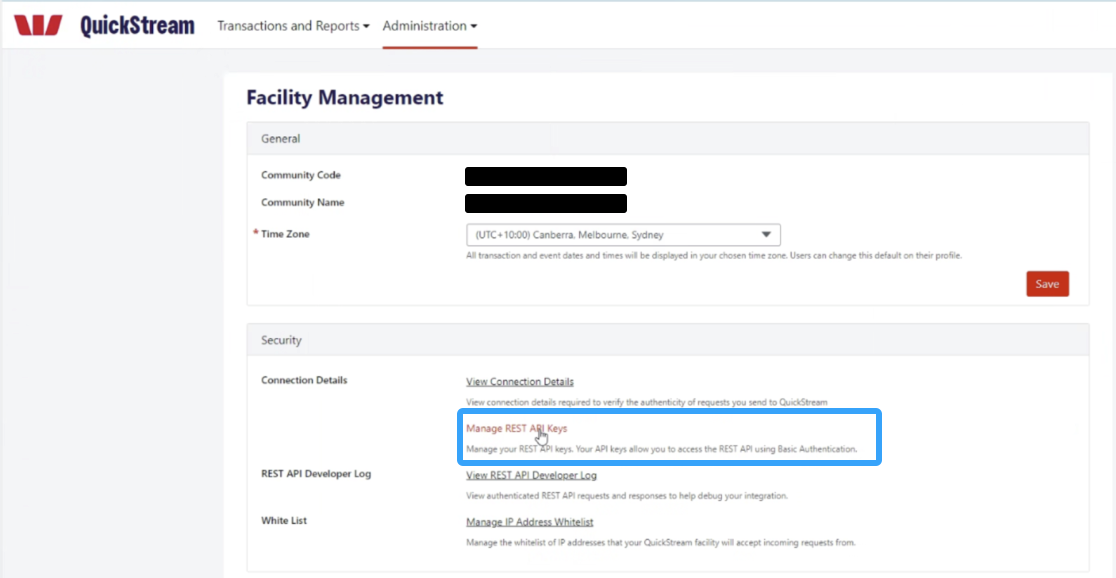
Step 2: Navigate to Administration > Facility Settings.
Step 3: Click Manage REST API Keys.
Step 4: Generate a new key and set the Key Access Type to Secret.
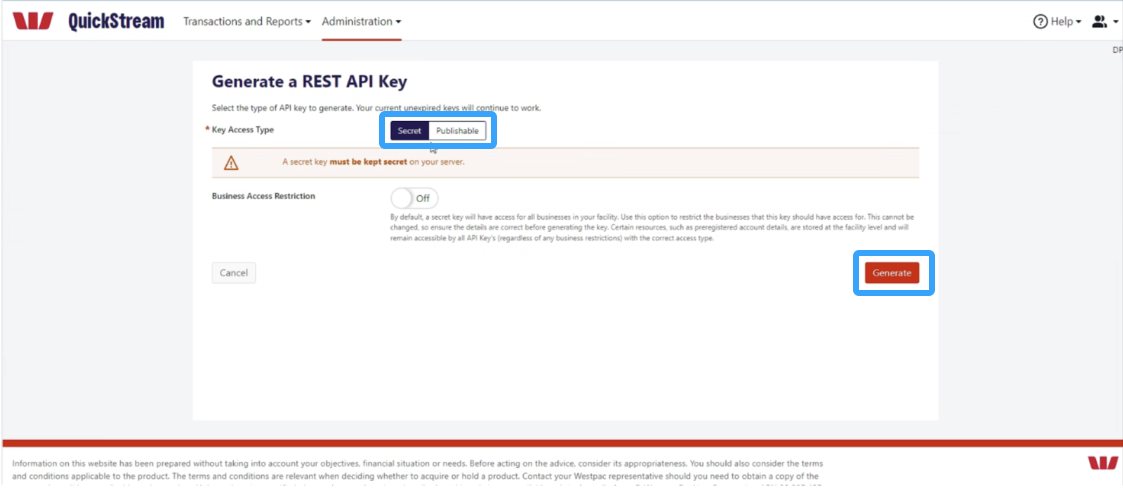
Step 5: Record the public key and private key once the key has been generated.
Set Up the Integration
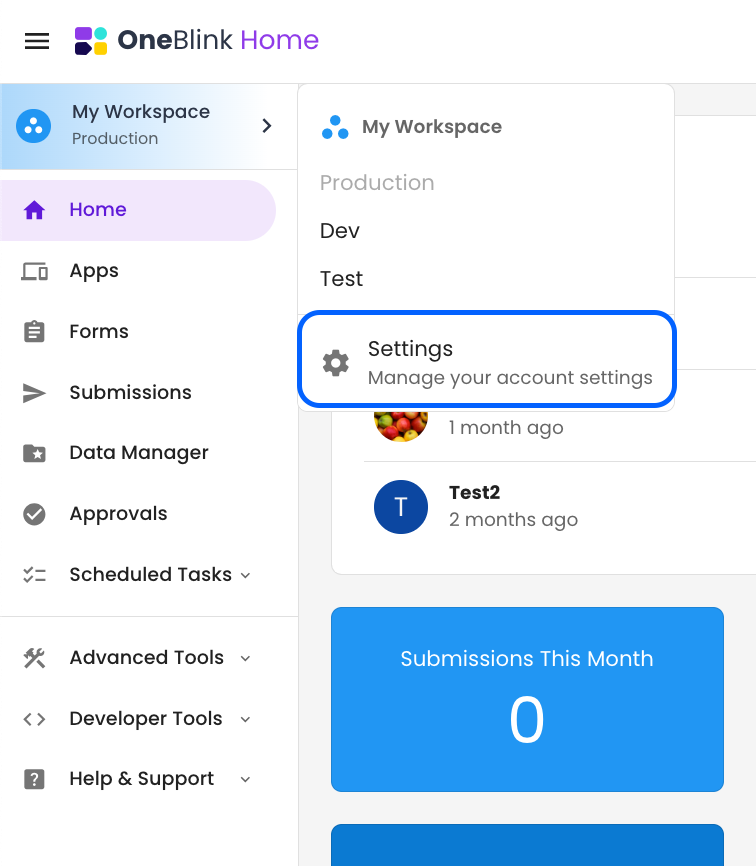
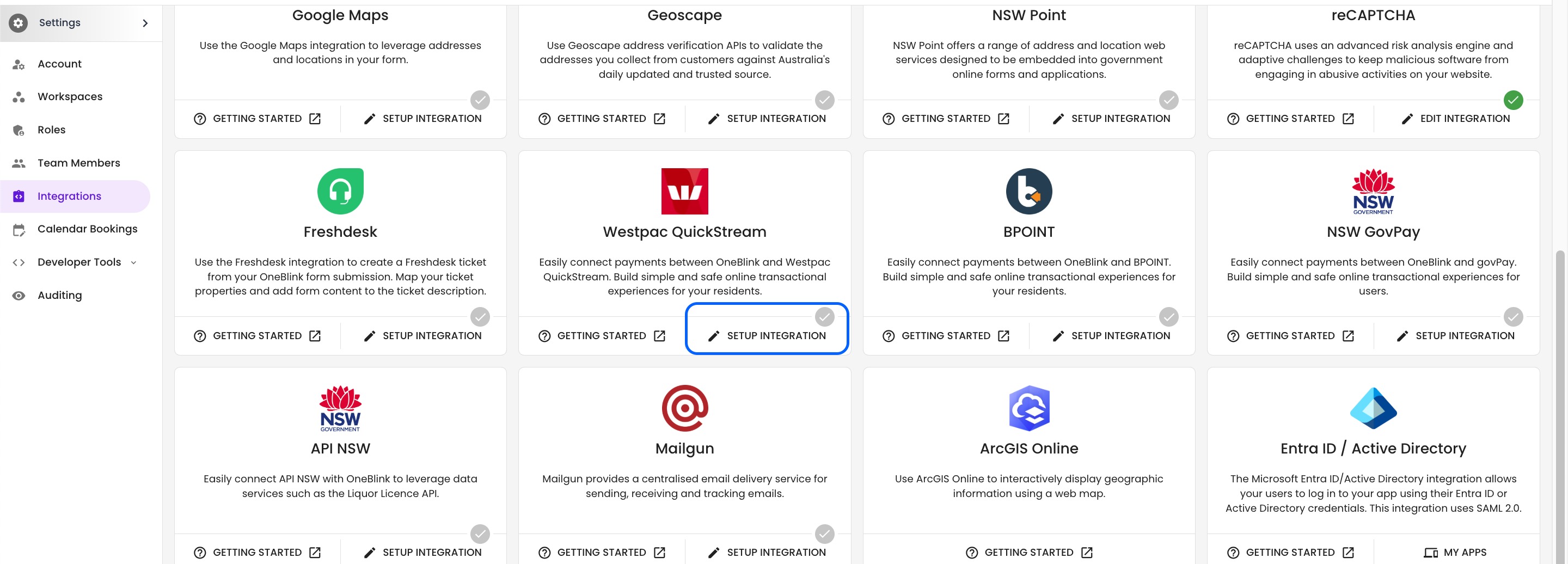
Step 1: In OneBlink LcS, open the Integrations menu and select Setup Integration on the Westpac QuickStream card.
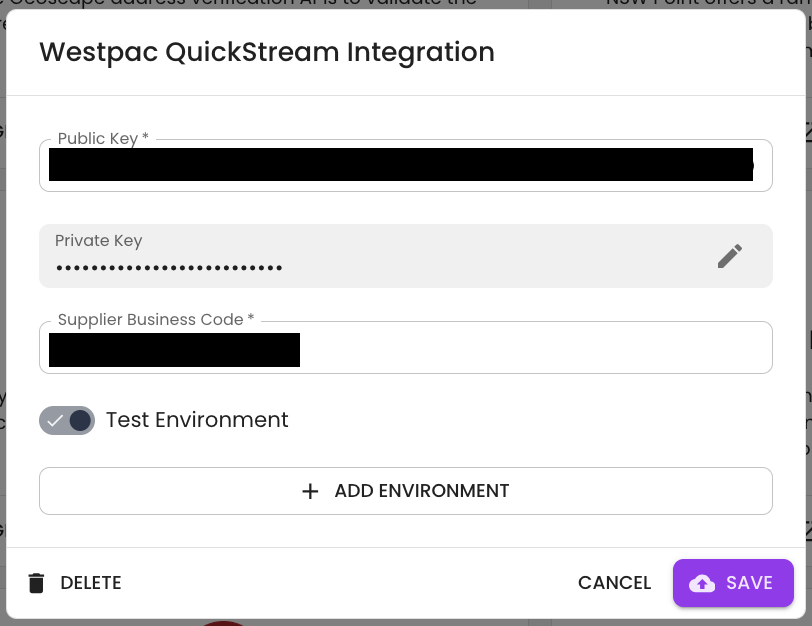
Step 2: Enter the required integration details:
- Public Key
- Private Key
- Supplier Business Code
- Whether the integration is for a test environment
Click Save.
You can configure multiple environments for this integration. If you add multiple environments, include a label for each environment.
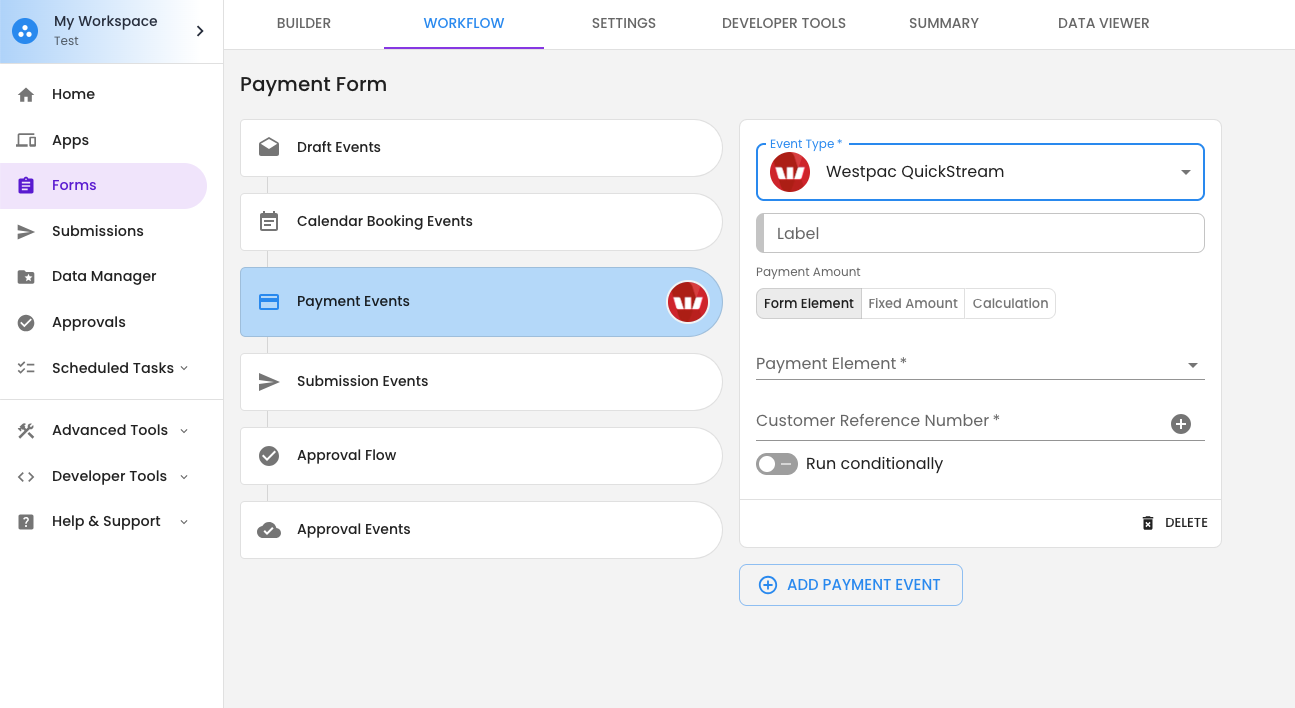
Step 3: Open the form that will use the payment integration, then navigate to the Workflow tab.
Add a new payment event and select Westpac QuickStream from the dropdown.
From here, configure the following:
- Payment Element: The element used for the total payable amount. This dropdown displays all number and calculation elements from the form.
- Customer Reference Number: This can be a value from the form, the submission ID, or a manually entered value.
Getting Help
If you need any assistance with Westpac QuickStream, please reach out through the Report Issue menu or email support@oneblink.io.
Was this article helpful?
That’s Great!
Thank you for your feedback
Sorry! We couldn't be helpful
Thank you for your feedback
Feedback sent
We appreciate your effort and will try to fix the article