The Entra ID integration allows users to authenticate into your app using your existing Entra ID user pool.
OneBlink’s Entra ID integration uses SAML 2.0.
TABLE OF CONTENTS
Getting Started
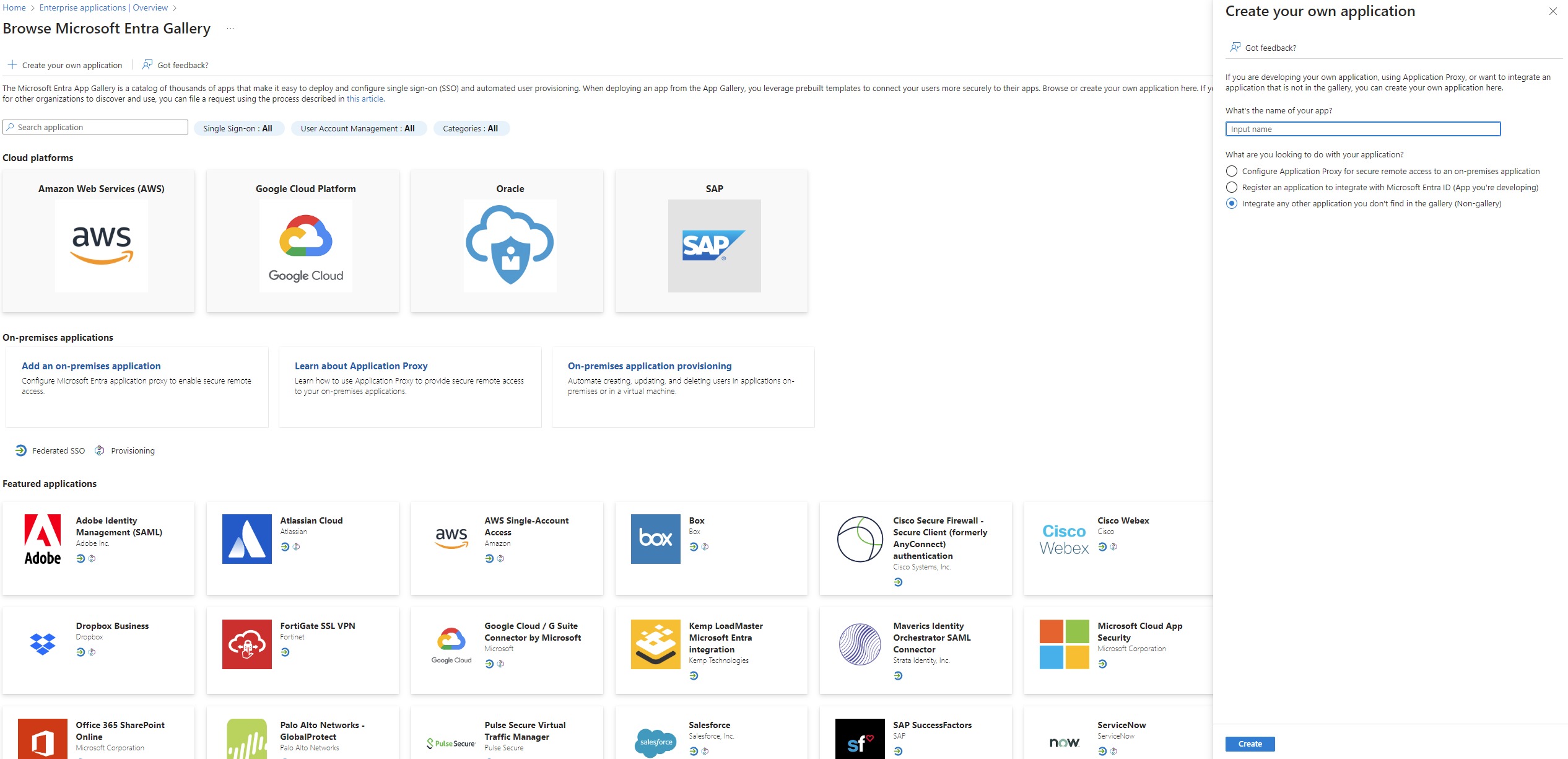
To use Entra ID with OneBlink, you will need an Entra ID app configured in Microsoft Entra.
In the example below, an Enterprise application is used with the Integrate any other application you don't find in the gallery (Non-gallery) option.
Before configuring Entra ID, open the OneBlink Console and navigate to the app you want to configure.
Step 1: Open the My Apps menu.
Step 2: Click Manage on the app you want to configure.
Step 3: Navigate to the Developer Tools tab.
Step 4: Turn on Integrations with a SAML SSO Provider by clicking the Configure SAML button.
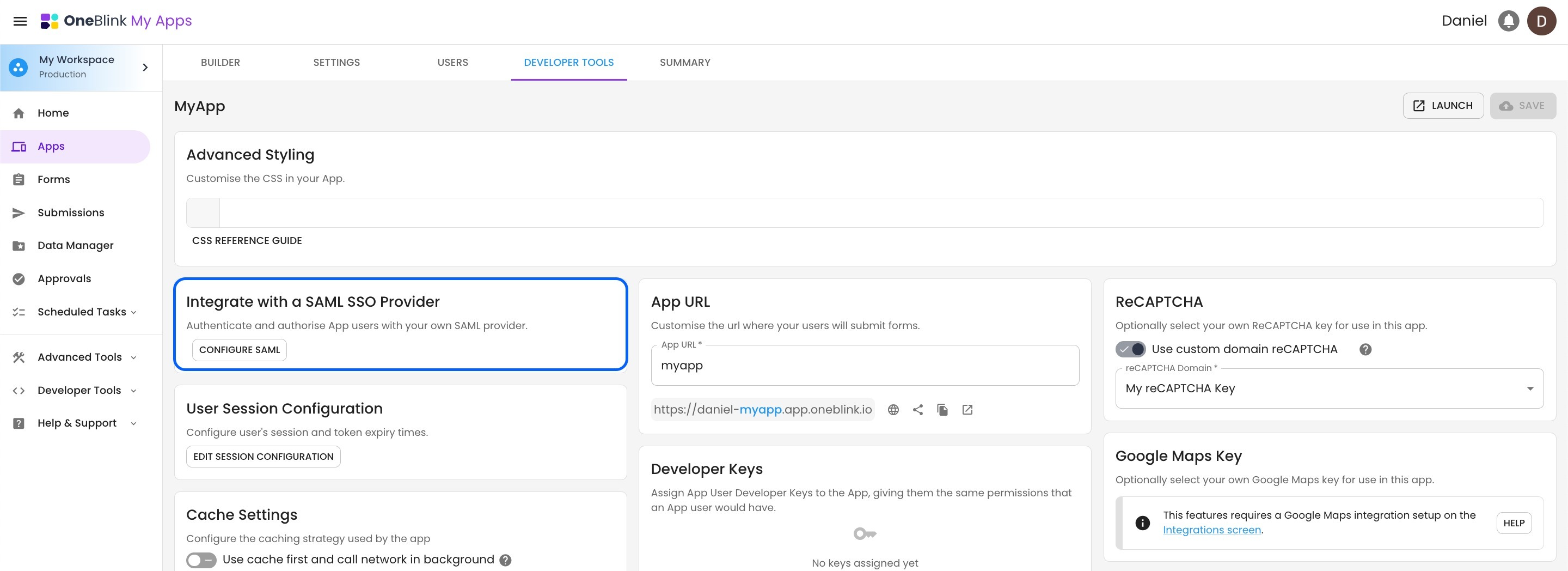
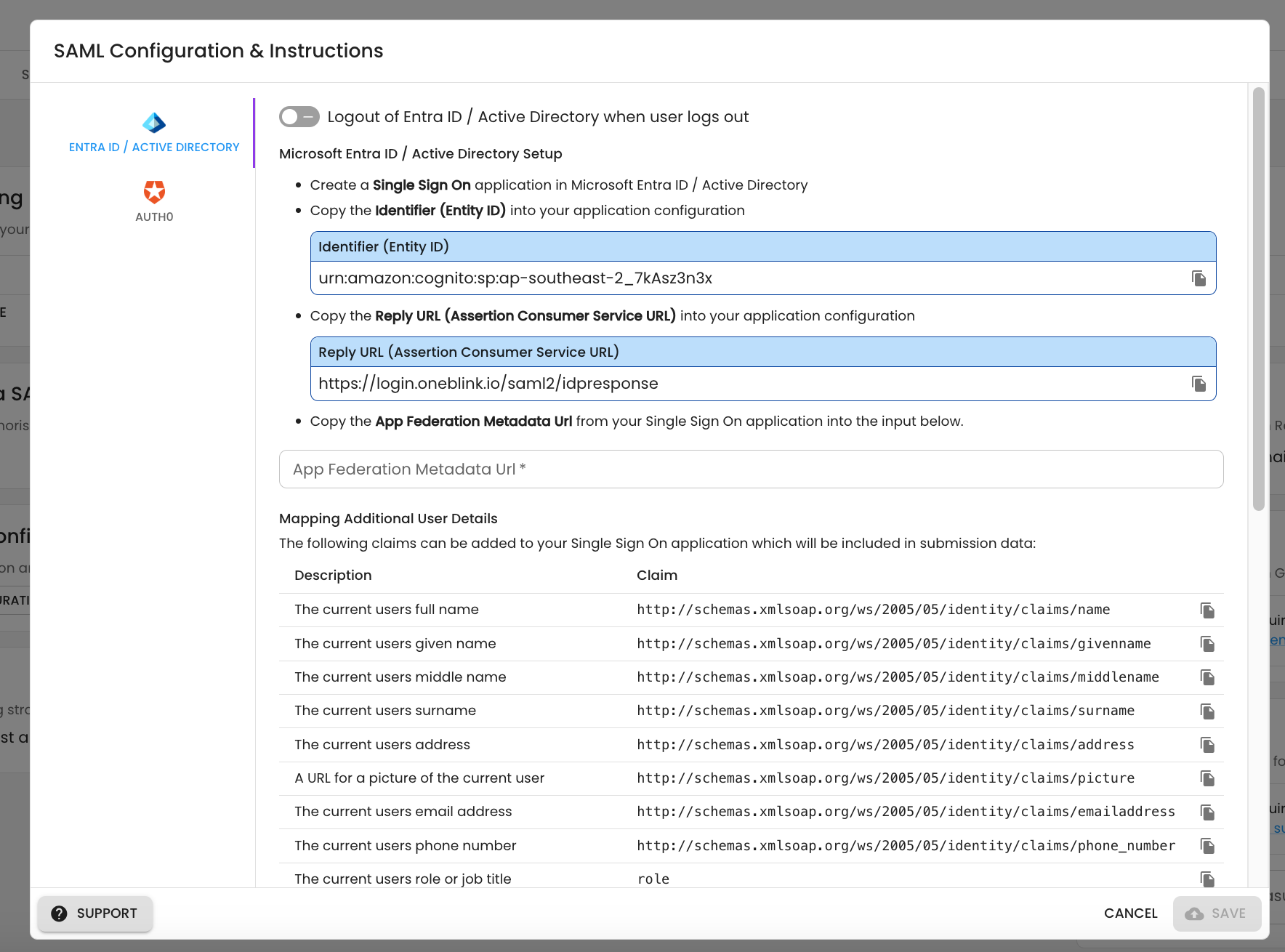
Step 5: Follow the setup steps shown in the console.
Configuring Entra ID
OneBlink uses SAML 2.0 to communicate with Entra ID.
After Entra ID has been enabled from the App Users page, the console will display a guide with the steps required to configure the connection.
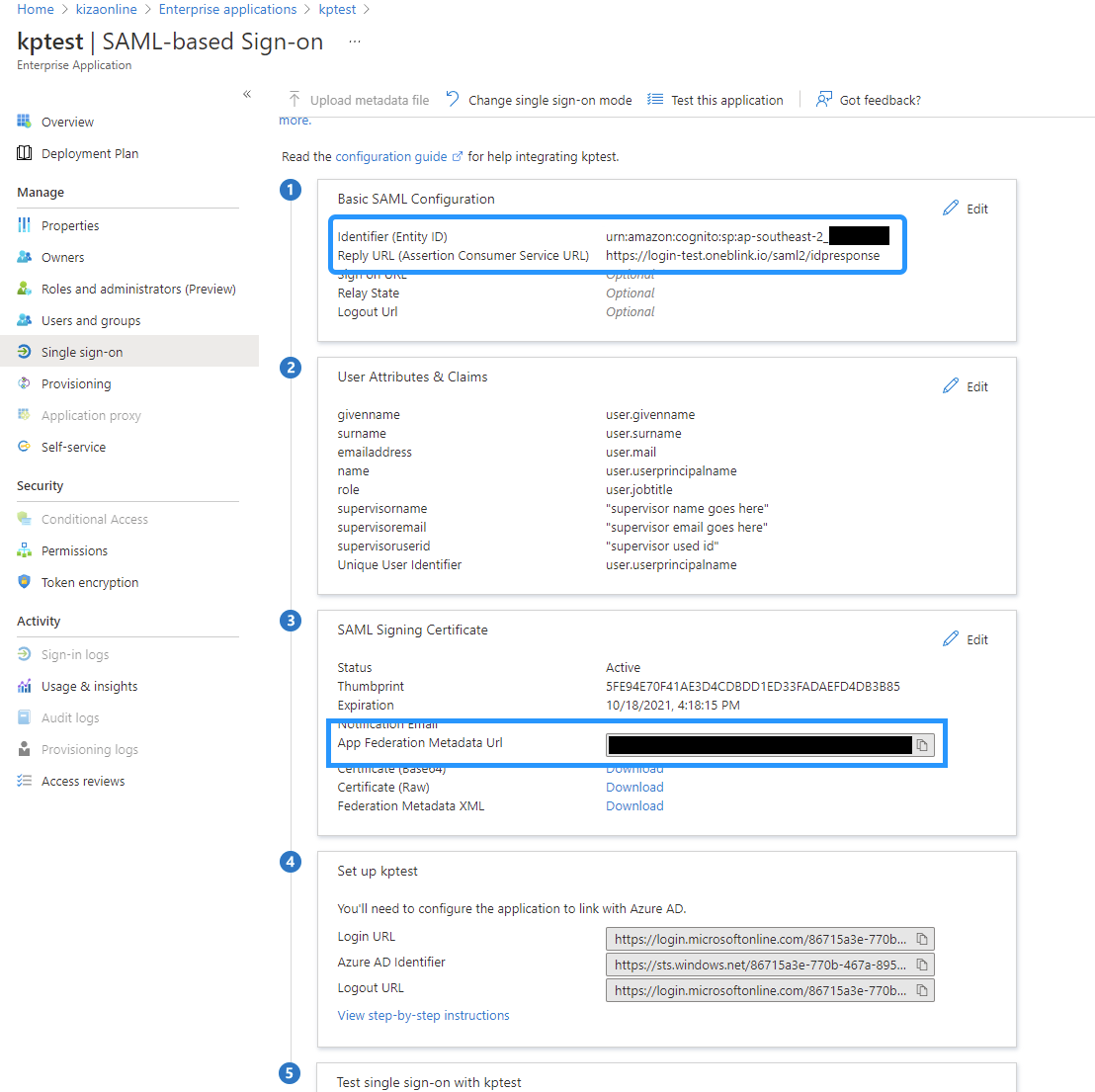
OneBlink will provide the following values to use in your Single Sign-On application configuration:
- Identifier (Entity ID)
- Reply URL (Assertion Consumer Service URL)
Add these values to your Entra ID SAML configuration.
You will also need to add your App Federation Metadata URL into the OneBlink Console.
Testing the Integration
Once the configuration has been saved, open your PWA and test the login experience.
If the configuration has been completed correctly, users will be able to authenticate into the app using Entra ID.
Getting Help
If you need any assistance with Entra ID integration, please reach out through the Report Issue menu or email support@oneblink.io.
Was this article helpful?
That’s Great!
Thank you for your feedback
Sorry! We couldn't be helpful
Thank you for your feedback
Feedback sent
We appreciate your effort and will try to fix the article