The Bulk Upload feature allows Team Members to create multiple form submissions by uploading a CSV file instead of submitting the form manually.
This allows CSV data to be captured in OneBlink as submission data. It also allows workflow events to run for each submission, so the uploaded data can be passed to another system.
TABLE OF CONTENTS
CSV and Form Configuration
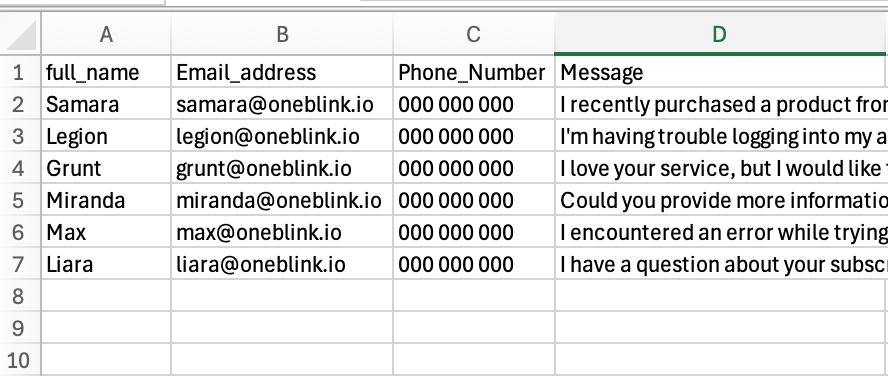
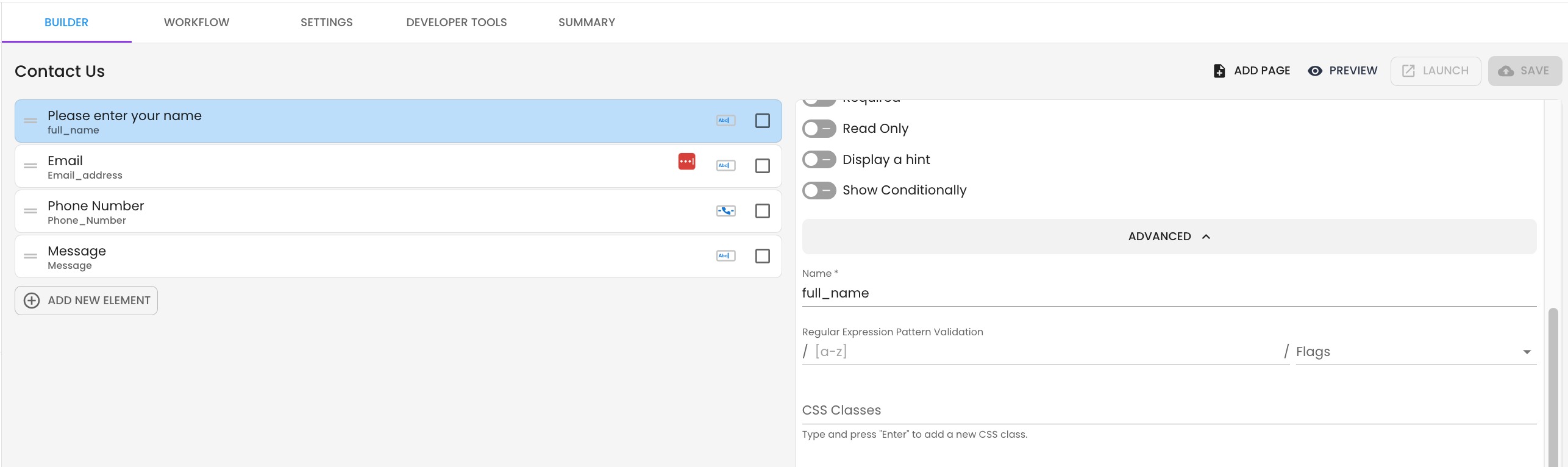
Before using Bulk Upload, make sure the column headings in your CSV file match the element names in the OneBlink form.
CSV example:
Example form:
How to Bulk Upload
Step 1: Open the Forms menu and find the form you want to upload submissions for.
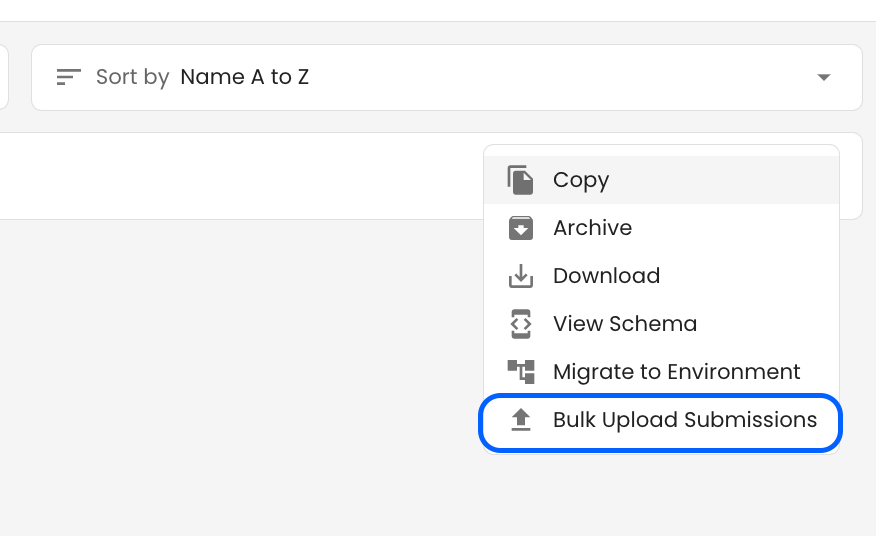
Select the 3-dot menu on the right side of the form.

Step 2: Select Bulk Upload Submissions.
Step 3: Select Select File, then choose the CSV file you want to upload.
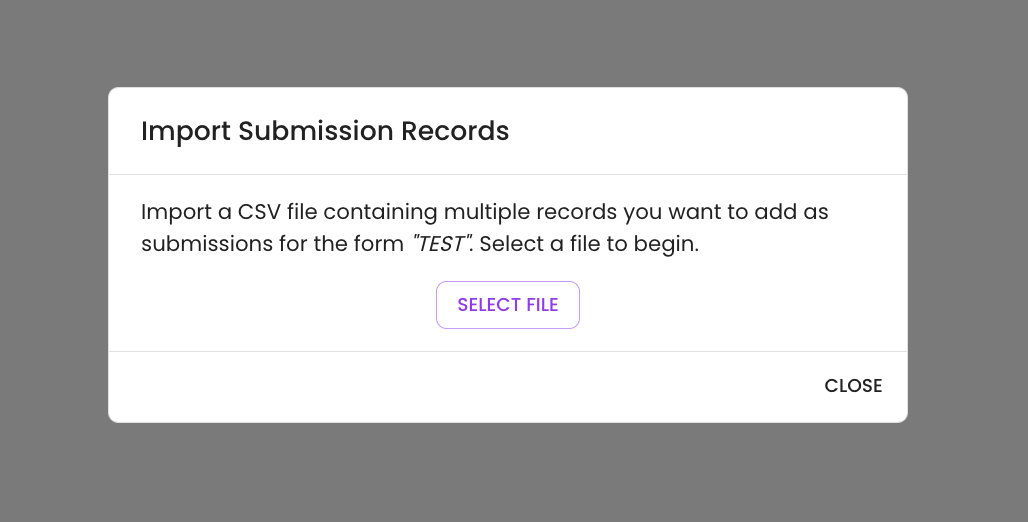
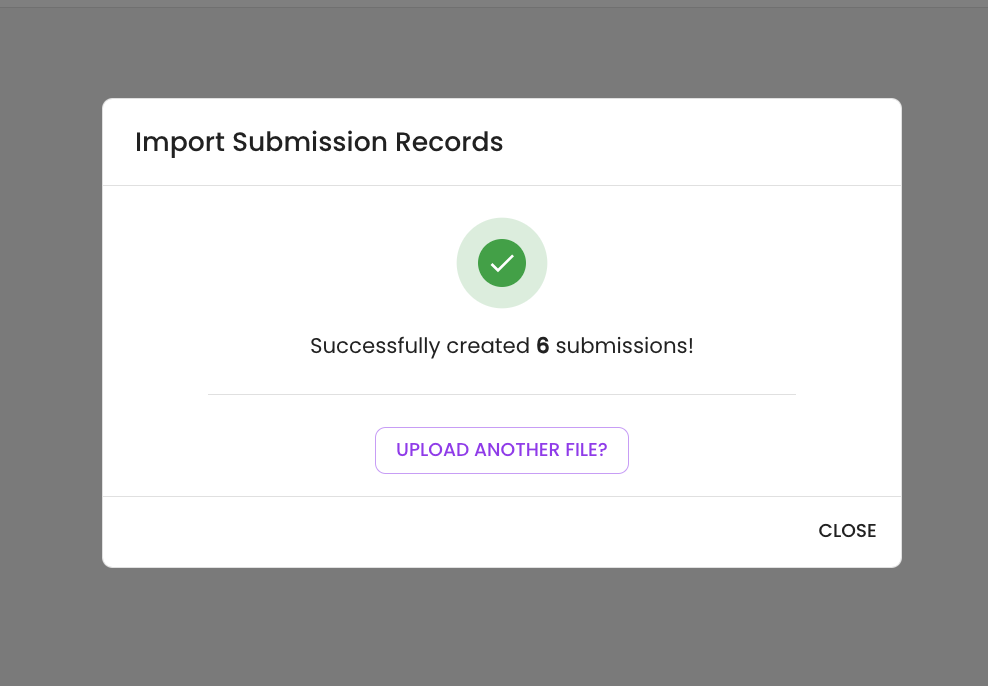
Step 4: Once the submissions have been successfully uploaded, you can upload another file if required.
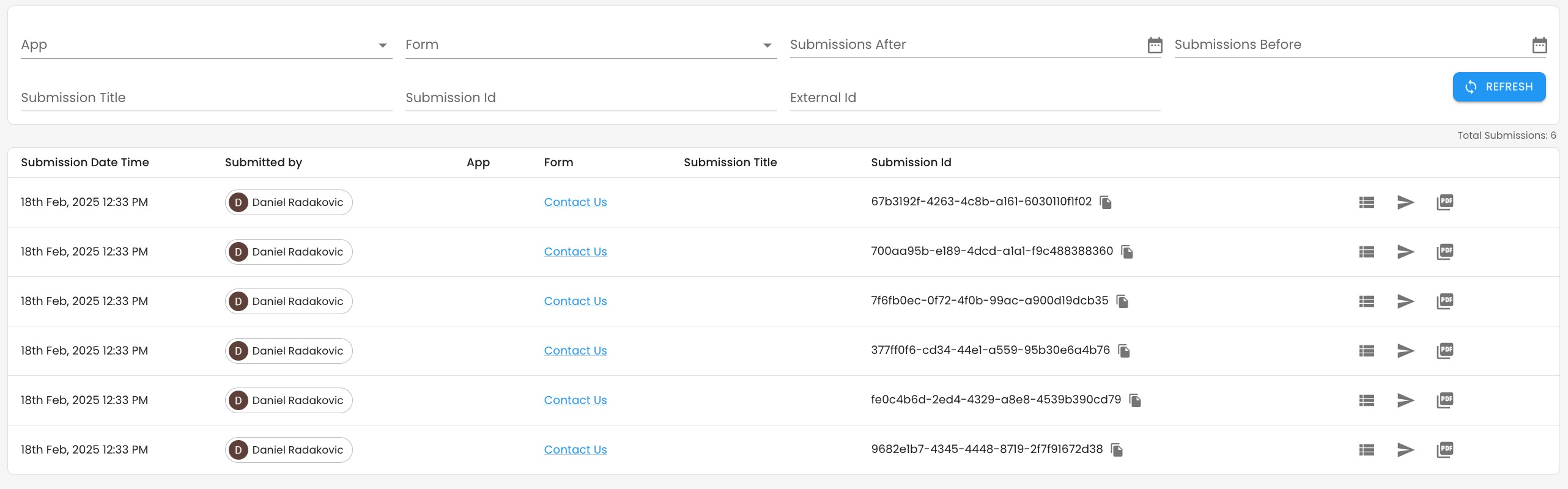
Step 5: Open the Submissions menu to view the submissions that were uploaded.
Getting Help
If you need any assistance with Bulk Upload, please reach out through the Report Issue menu or email support@oneblink.io.
Was this article helpful?
That’s Great!
Thank you for your feedback
Sorry! We couldn't be helpful
Thank you for your feedback
Feedback sent
We appreciate your effort and will try to fix the article