All Team Members in the platform are assigned a Role. These Roles are a collection of permissions that give different levels of access to different areas of the platform.
Default Roles
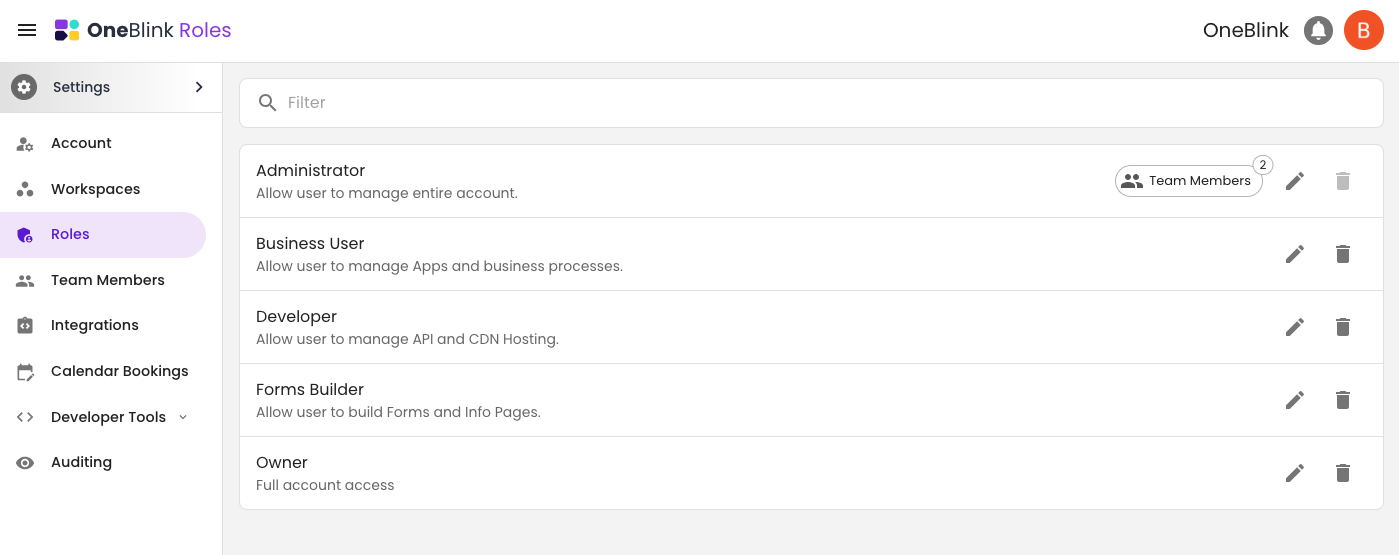
By default, the platform includes 5 Team Member Roles. Each of these roles has increasingly more permissions, with the owner role having all permissions.
- Form Builder: Allows users to build and manage Forms.
- Business User: Allows users to manage Apps and business processes.
- Developer: Allows users to manage API and CDN Hosting.
- Administrator: Allows users to manage the entire account except team member and retention policy management.
- Owner: Allow users to manage the entire account.
Managing Roles
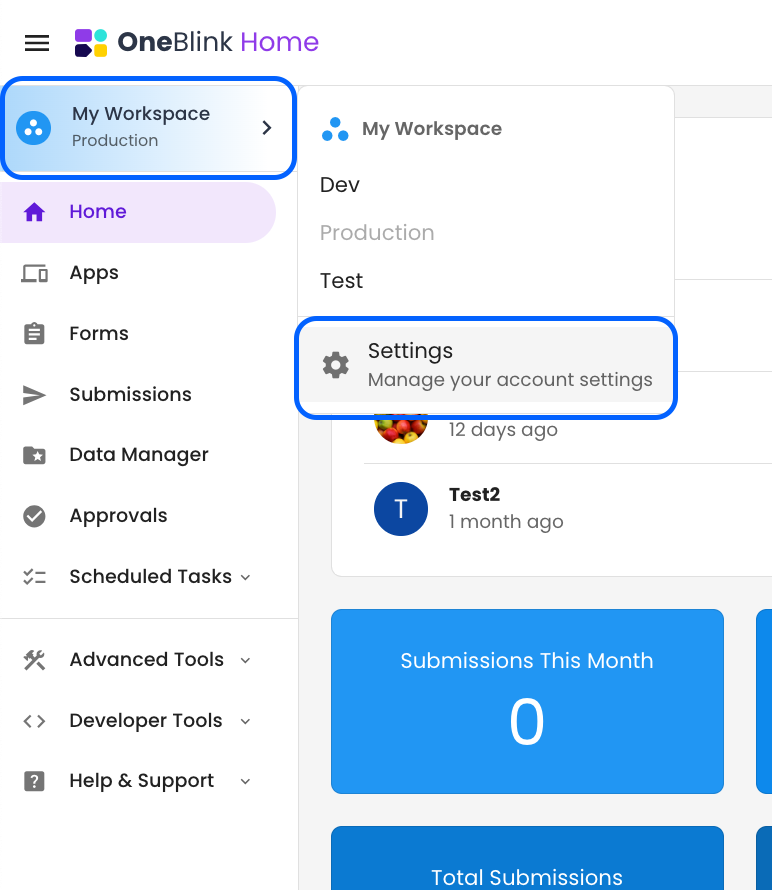
Roles can be managed using the Roles Menu. Use the Environment picker and select the Settings menu to access the Account settings.
Then click the Roles menu. From here, you can view the number of Team Members in each role as well as add, edit and delete Roles.
Add
You can add a new Role by clicking the add role (plus +) button. This allows you to create custom roles that suit your requirements. Find tool tips by hovering your mouse over each of the options.
- Name: Add a name for your new role
- Description: Type a description for the role
- Permissions: Select what permissions the role has
- Manager: Can create, update, and delete items
- Read Only: Has view-only access
- Off: Unable to view, create, update or delete
Edit
You can edit the existing roles by selecting the edit (pencil) button.

Delete
You can easily remove a role by clicking the settings in the top right of the role and selecting the delete button.
This will be disabled if there are still Team Members assigned to the role.
IMPORTANT You will need to be in a role that has permission to modify roles in order to add, edit and delete roles. |
Getting Help
If you need any assistance with Roles, please reach out through the Report Issue menu or email support@oneblink.io.
Was this article helpful?
That’s Great!
Thank you for your feedback
Sorry! We couldn't be helpful
Thank you for your feedback
Feedback sent
We appreciate your effort and will try to fix the article