This article explains how to share forms and apps using the OneBlink LcS. Platform Team Members can share links and QR codes for forms and apps that have been created in the platform.
TABLE OF CONTENTS
Sharing Forms
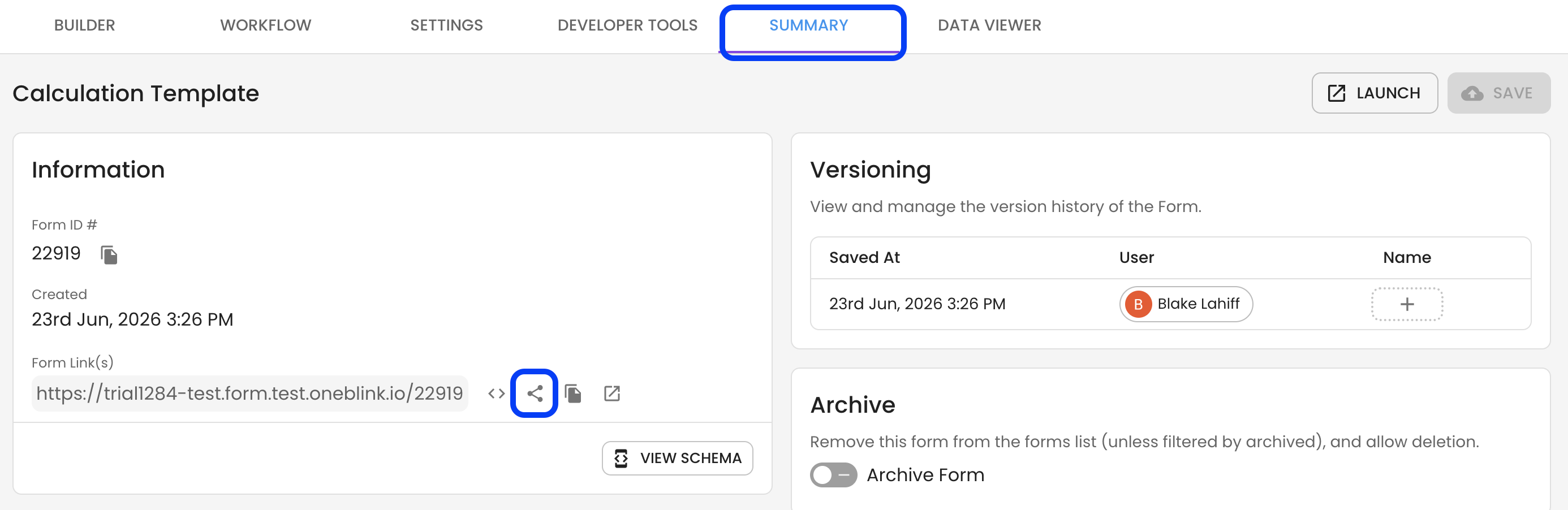
To share a form, open the form and go to the Summary tab.
In the Information section, click the share button to open the sharing options for the form.
Sharing Apps
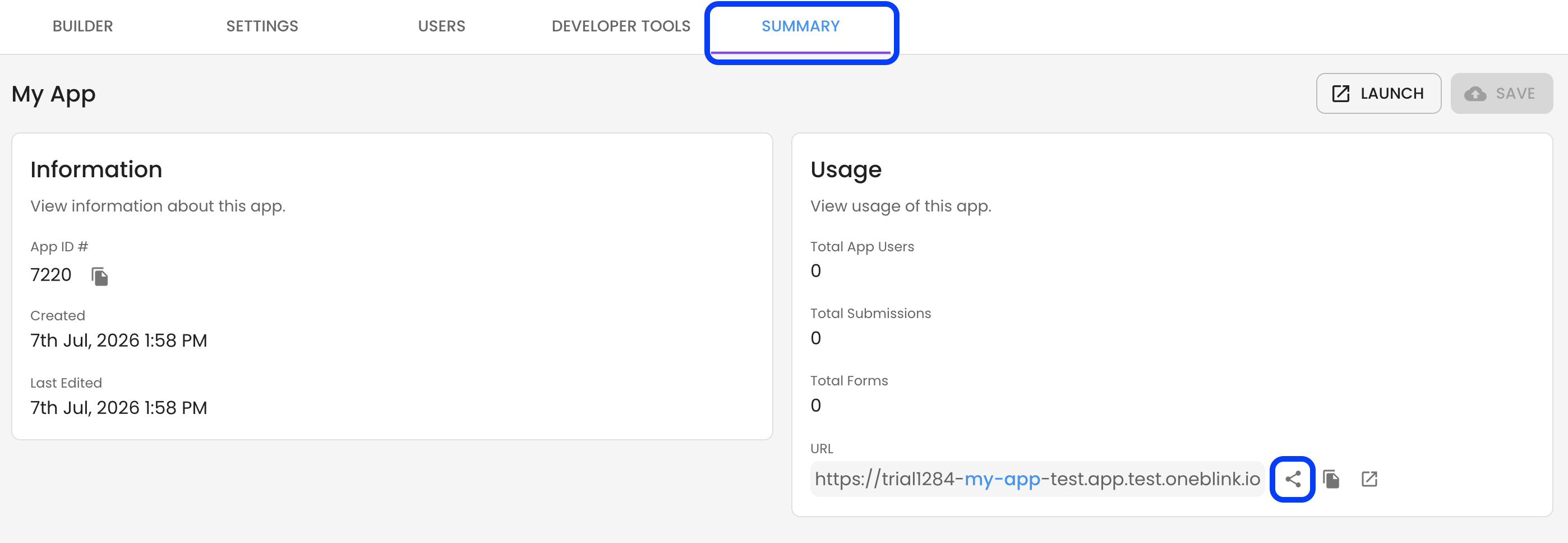
To share an app, open the app you would like to share and go to the Summary tab.
In the Usage section, click the share button to open the sharing options for the app.
Sending a Form or App Link by Email
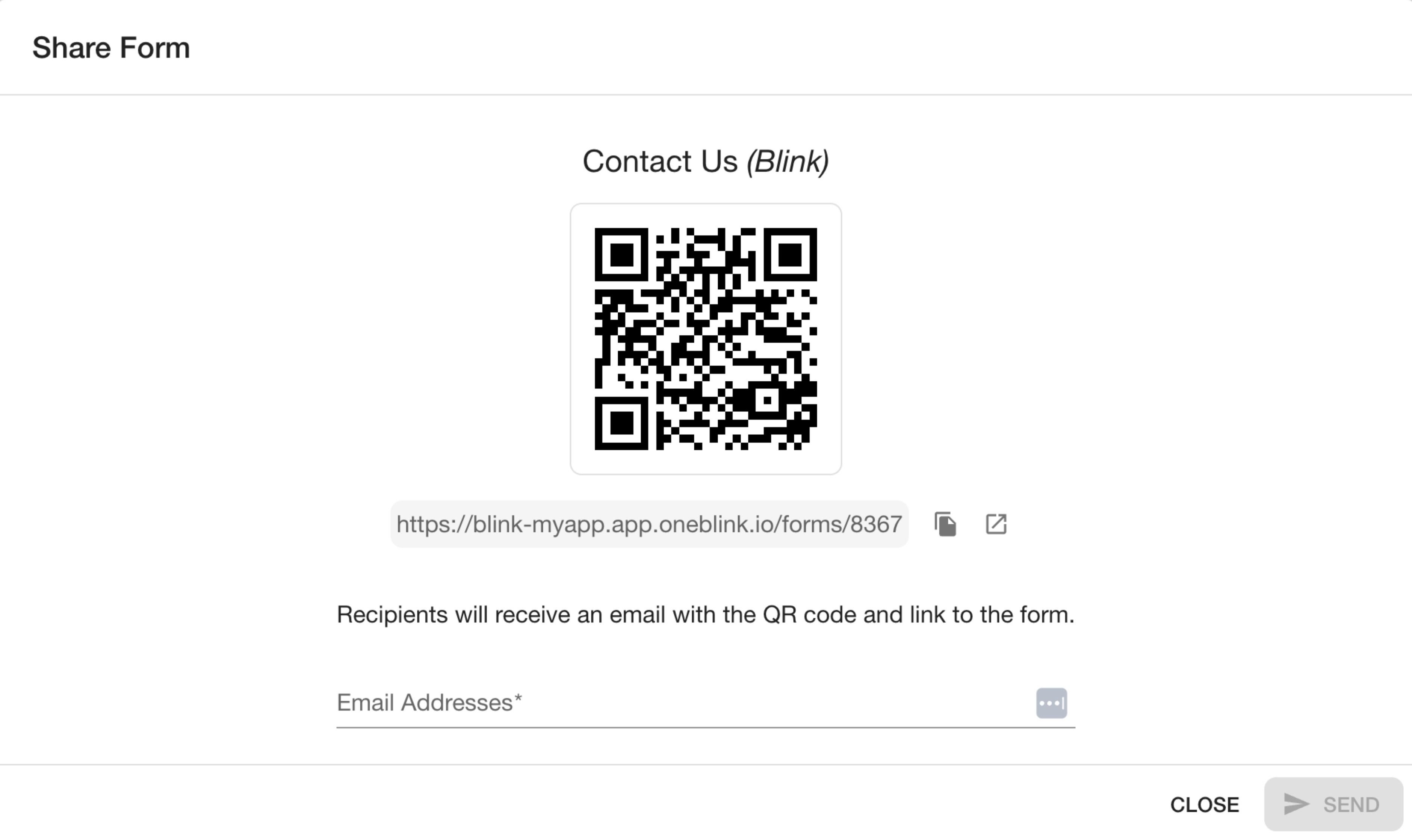
When you click the share button, a modal will open with the following information:
- The form or app name
- A QR code that links to the form or app
- The form or app URL
- A section for adding email recipients
To email recipients directly from the sharing modal, follow the steps below:
Step 1: Add each recipient’s email address to the Email Addresses section.
Step 2: Review the list of recipients.
Step 3: Click Send.
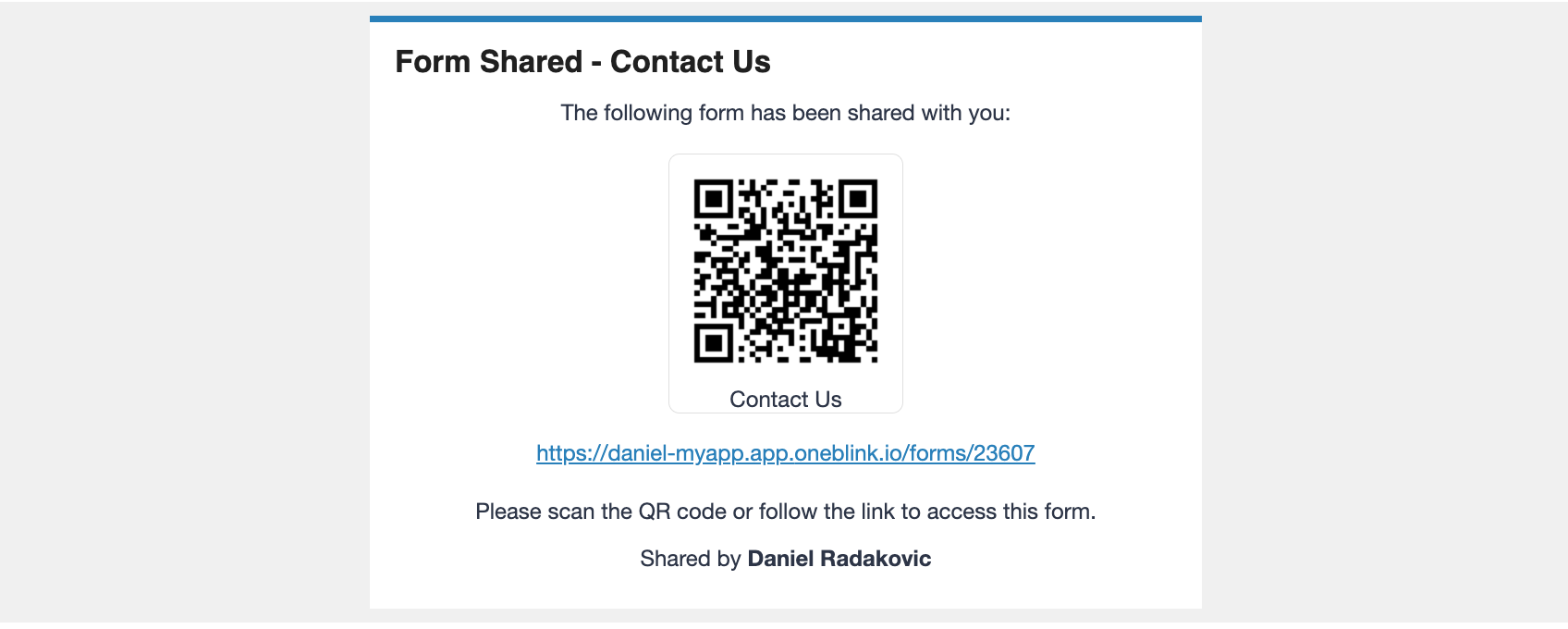
The nominated recipients will be notified by email. The email will include the QR code and URL for the shared form or app.
Getting Help
If you need any assistance with sharing forms and apps, please reach out through the Report Issue menu or email support@oneblink.io.
Was this article helpful?
That’s Great!
Thank you for your feedback
Sorry! We couldn't be helpful
Thank you for your feedback
Feedback sent
We appreciate your effort and will try to fix the article