This article explains how to embed a form that uses a Calendar Booking workflow event into your website.
TABLE OF CONTENTS
- Embedding the Form
- Generating Calendar Booking Embed Scripts
- Adding the Scripts to Your Website
- Getting Help
Embedding the Form
Before setting up Calendar Booking pages, add the standard website embed script to your website.
For instructions on embedding a OneBlink form, see Embed Form into Webpage.
Generating Calendar Booking Embed Scripts
To generate the Calendar Booking embed scripts, follow the steps below:
Step 1: Navigate to the form you want to add to your website.
Step 2: Open the Summary tab and click the embed button next to the Form Link.
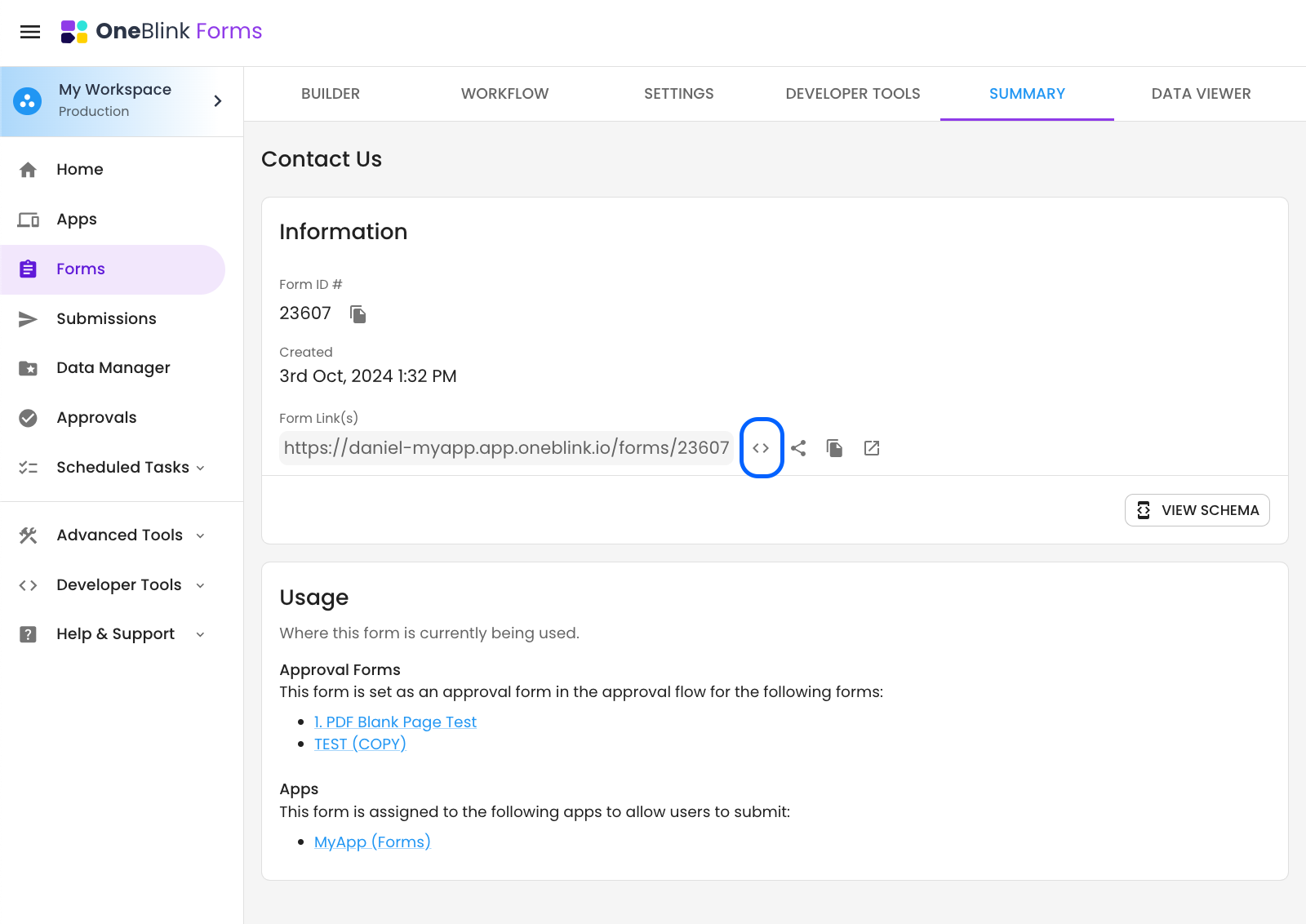
The Calendar Booking scripts will only display if a Calendar Booking workflow event has been configured on the form.
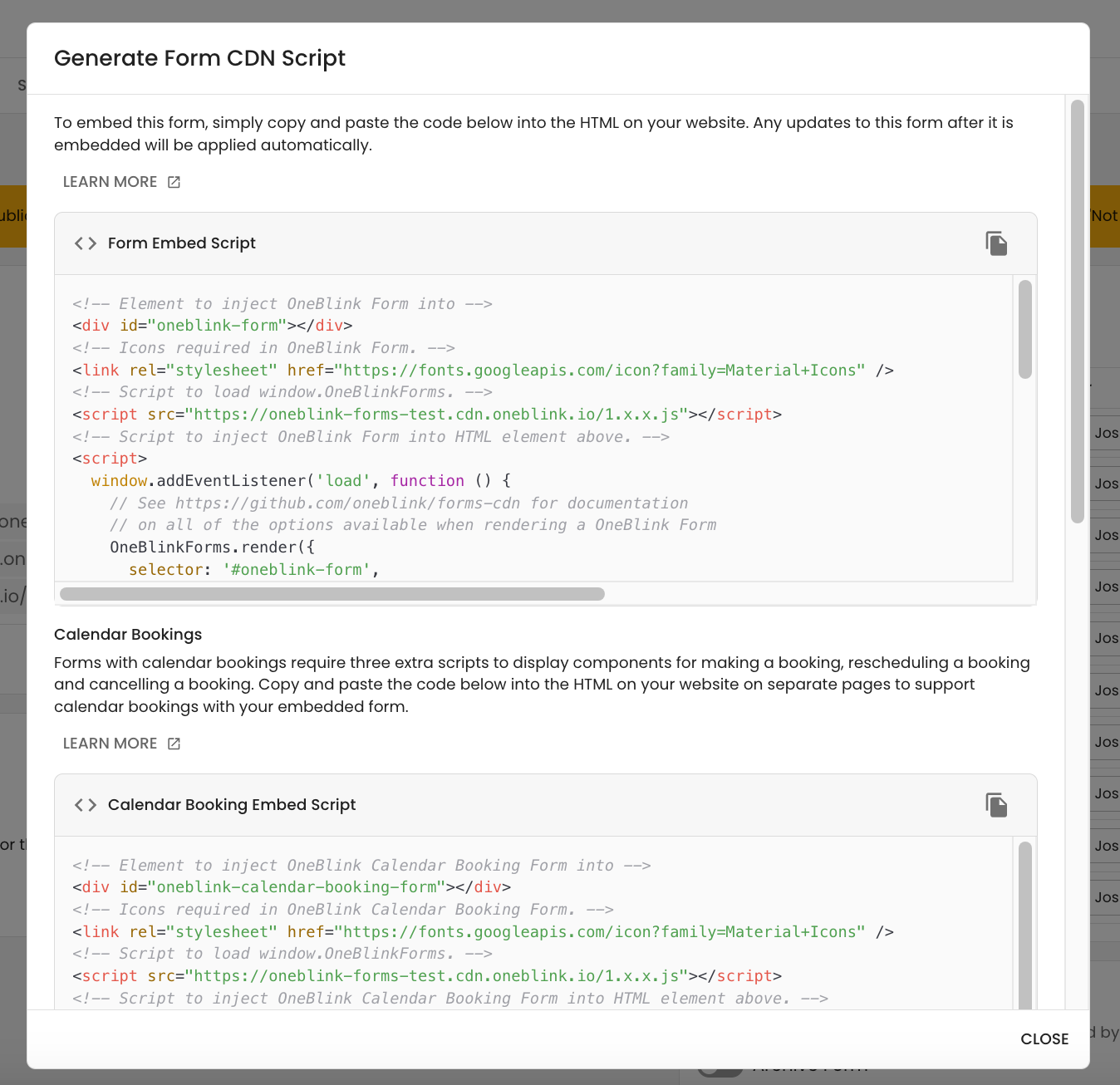
Step 3: Review the generated embed scripts.
The following scripts are generated:
- Form Embed Script: The embed script for your form.
- Calendar Booking Embed Script: The URL used to display the calendar booking page.
- Reschedule Booking Embed Script: The URL used to display the calendar booking reschedule page.
- Cancel Booking Embed Script: The URL used to display the calendar booking cancel page.
Adding the Scripts to Your Website
Copy and paste the four embed scripts into four separate pages on your website.
After the pages have been created, add the URLs for the Calendar Booking, Reschedule Booking and Cancel Booking pages to the main form embed script.
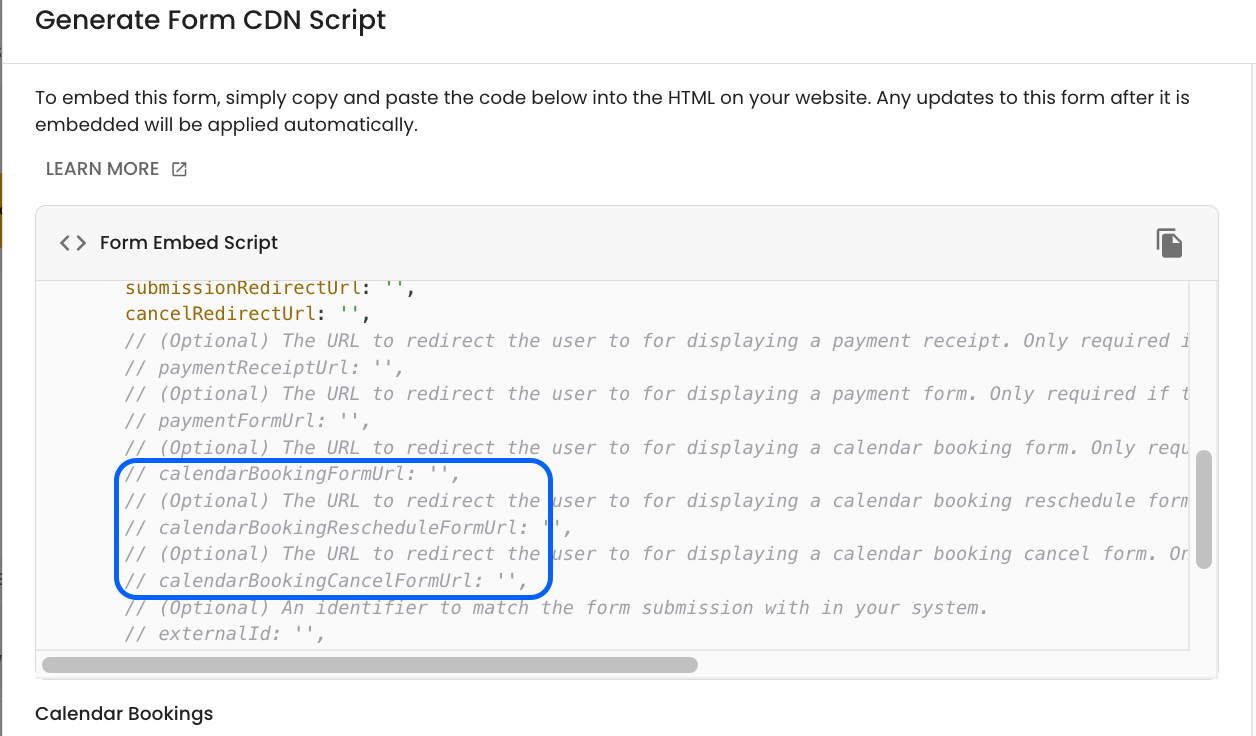
Once configured, users will be able to complete the form and be redirected to the relevant website pages to book, reschedule or cancel their calendar booking.
Getting Help
If you need any assistance with Embedded Forms with Calendar Bookings, please reach out through the Report Issue menu or email support@oneblink.io.
Was this article helpful?
That’s Great!
Thank you for your feedback
Sorry! We couldn't be helpful
Thank you for your feedback
Feedback sent
We appreciate your effort and will try to fix the article