Good To Go helps organisations track, manage, and audit physical assets and inventory across multiple locations and mobile units. It provides asset-level tracking, location management, manifests, and workflows to support accountability, compliance, and operational readiness.
The Good To Go integration allows asset information captured in OneBlink forms to be automatically updated in Good To Go.
TABLE OF CONTENTS
Getting Started
Before setting up the integration, you will need:
- A Good To Go account
- A Good To Go API key
Once you have both, you can configure the integration from the Integrations section of the OneBlink Console.
Getting Your Good To Go Key
To connect Good To Go to OneBlink, first create an API key in Good To Go, then add that key to the Good To Go integration in the OneBlink Console.
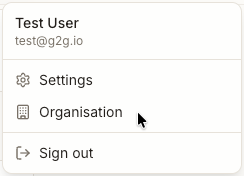
Step 1: You can create a key from Good To Go by navigating to your Organisation in G2G and right-clicking your Profile:
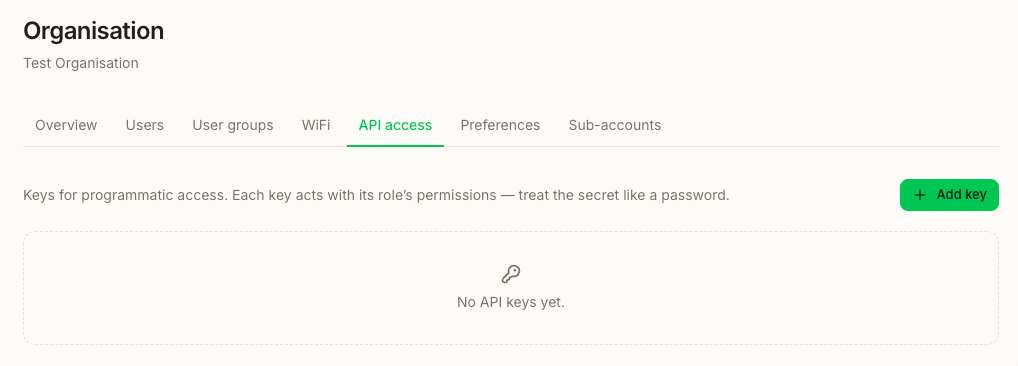
Step 2: Select the API Access Tab:
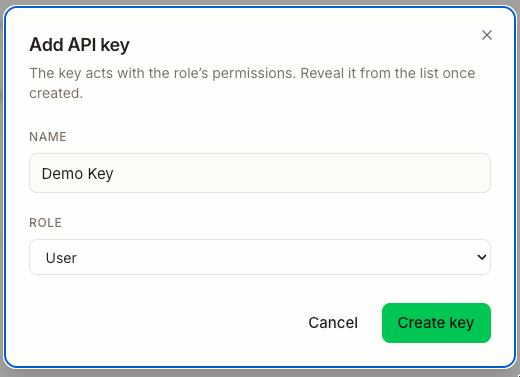
Step 3: Select Add Key to add a new API Key:
Step 4: Then select the Show key option to view/copy the API key:

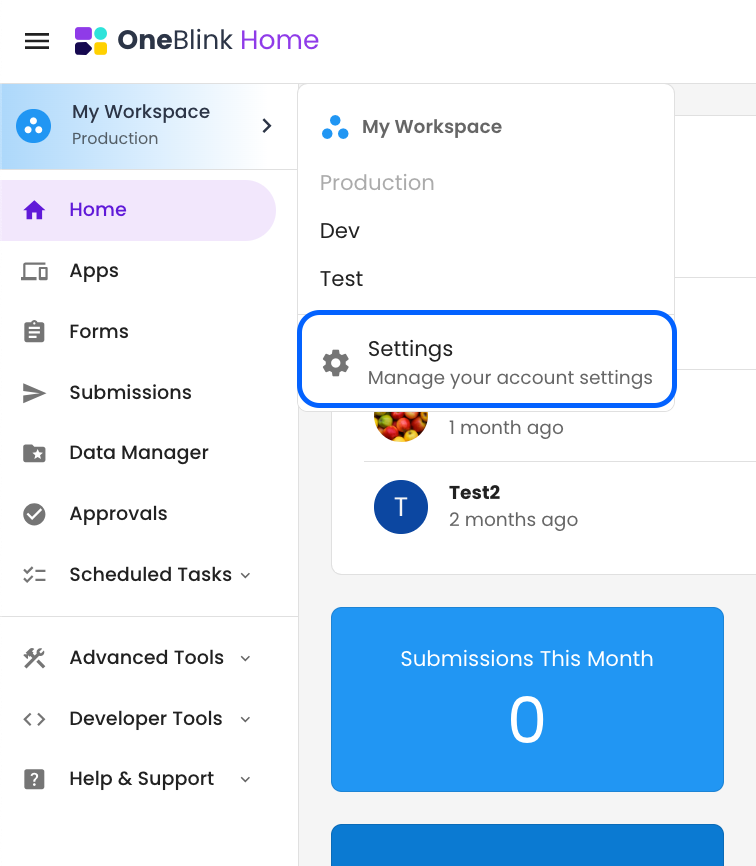
Step 5: Now in the Console, open the Environment Picker and click the Settings option.
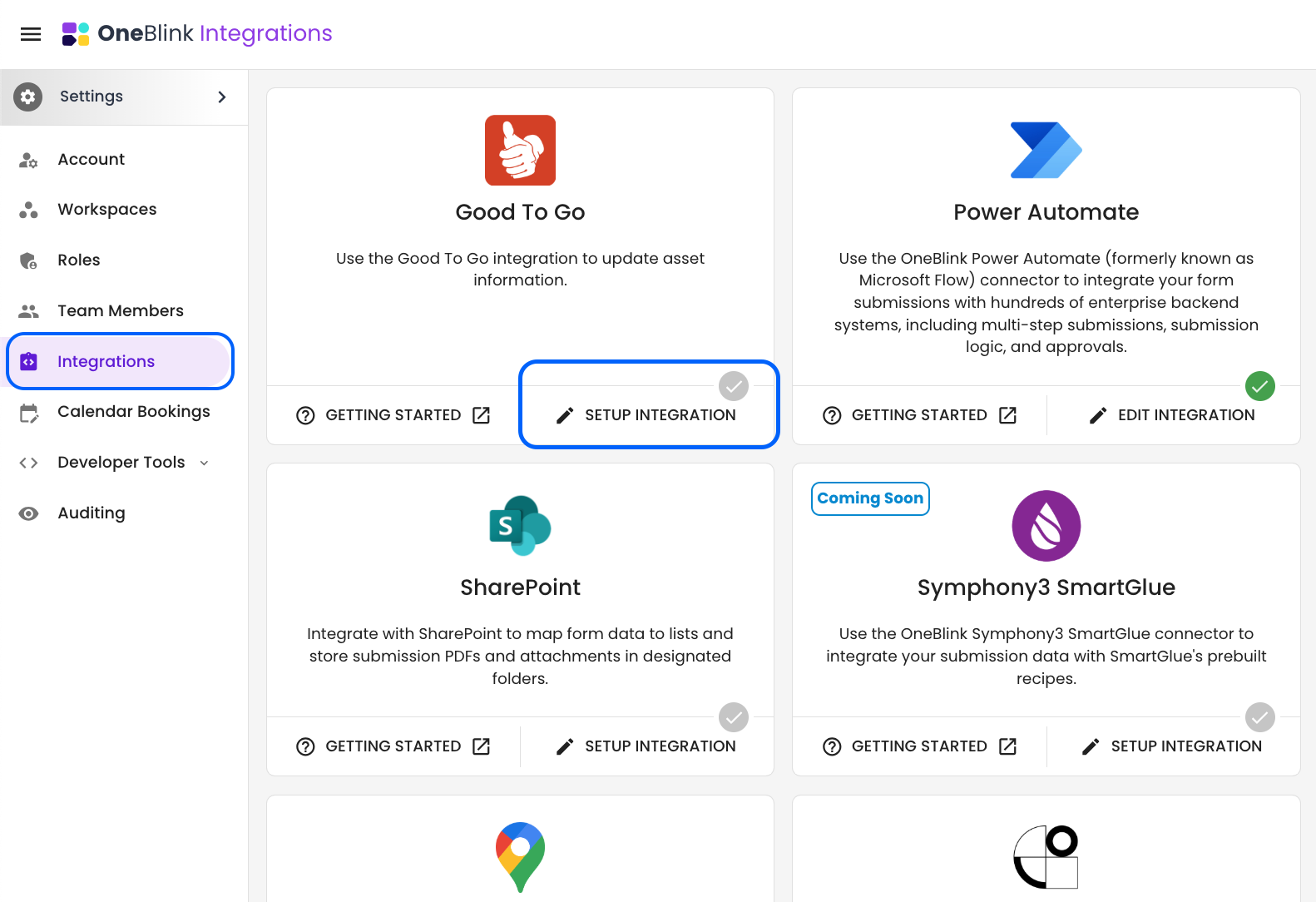
Step 6: Open the Integrations menu and click the Setup Integration button.
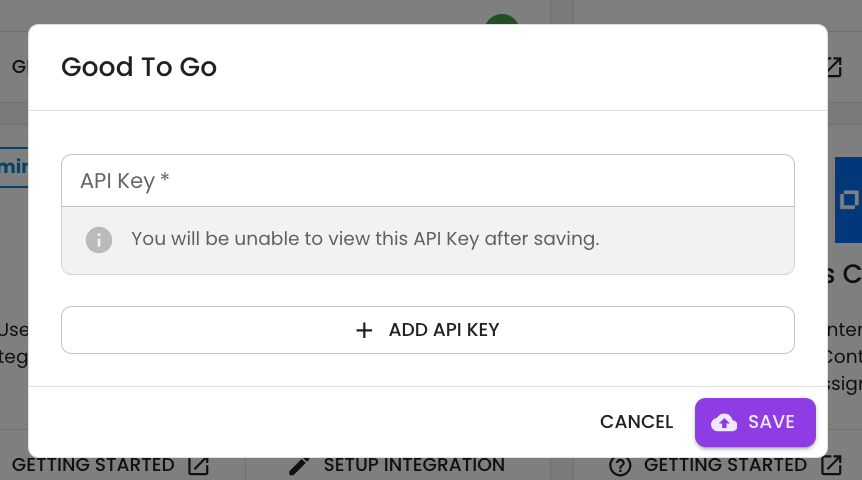
Step 7: Then, paste the API Key into the Good To Go integration and select Save:
Getting Help
If you need any assistance with Good To Go integration, please reach out through the Report Issue menu or email support@oneblink.io.
Was this article helpful?
That’s Great!
Thank you for your feedback
Sorry! We couldn't be helpful
Thank you for your feedback
Feedback sent
We appreciate your effort and will try to fix the article