Sage is OneBlink's AI-powered assistant, designed to help you understand, build and configure content within the OneBlink platform. Sage brings OneBlink's AI functionality together into a single interface.
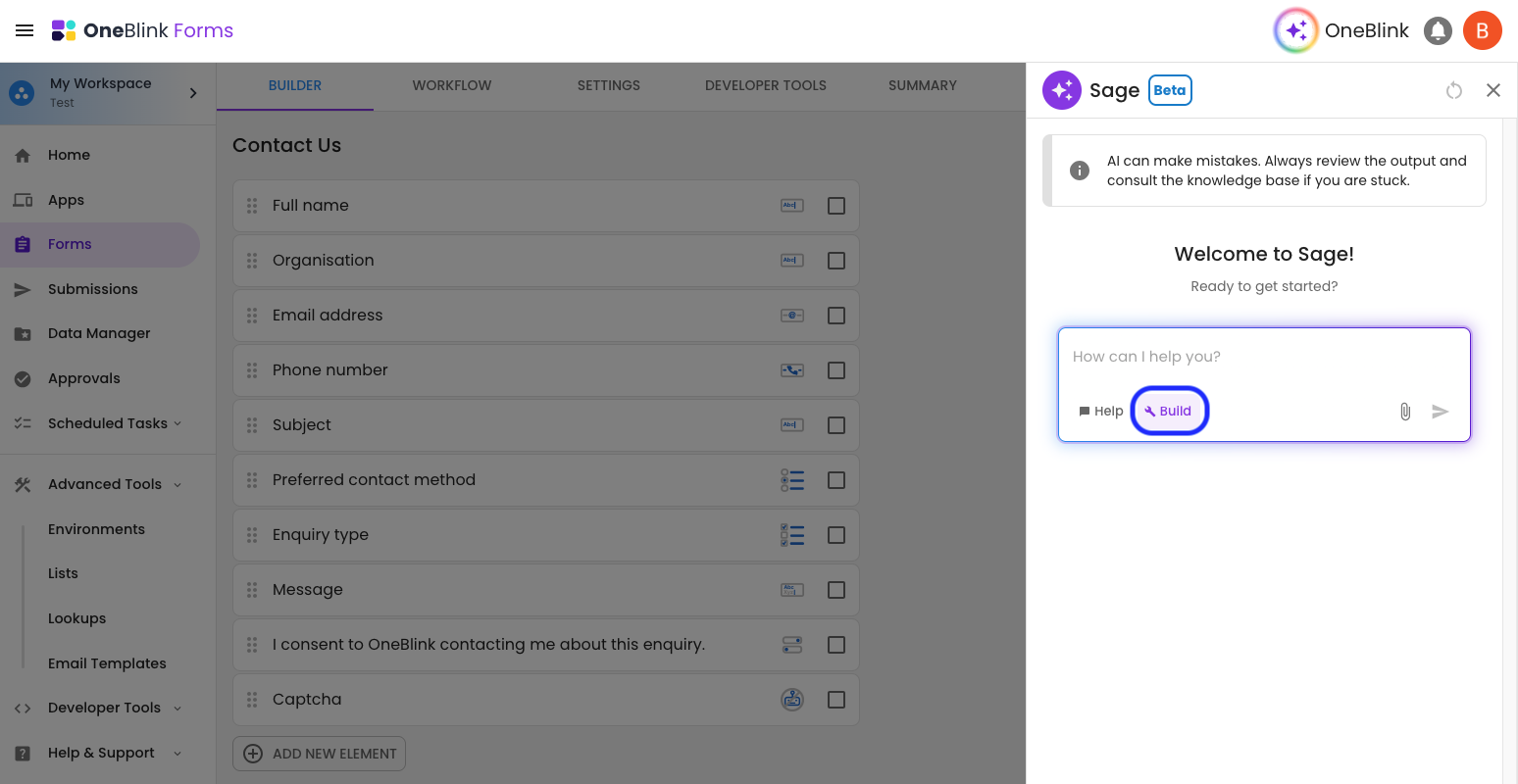
Depending on where you are in the platform and the features available to your account, Sage can answer questions, help you convert PDFs into forms, build and update forms, and modify your Environment Appearance settings.
Sage has two modes:
- Help mode: Answers questions, explains OneBlink functionality, finds existing feature requests and provides guidance.
- Build mode: Allows Sage to create or modify supported content on the page you are currently working on.
Sage will open in Help mode by default. Where Build mode is available, you can switch modes when you want Sage to make changes. Sage may also suggest switching to Build mode when your request requires it, but will ask you before changing modes.
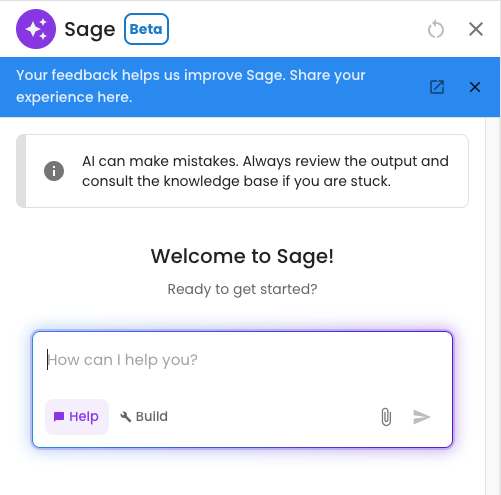
TABLE OF CONTENTS
Account Set-up
Help Mode
Help Mode does not require any additional consent or configuration for your account.
When available, Sage Help can be used by Team Members throughout the OneBlink platform.
Build Mode
Before your team can use Sage to create or modify content, Build Mode must be enabled in your account.
An Account Owner, or a Team Member with the appropriate account management permissions, can navigate to the Account screen and configure AI Build Mode.

Select the environments where you want to allow Build Mode, then click Save.
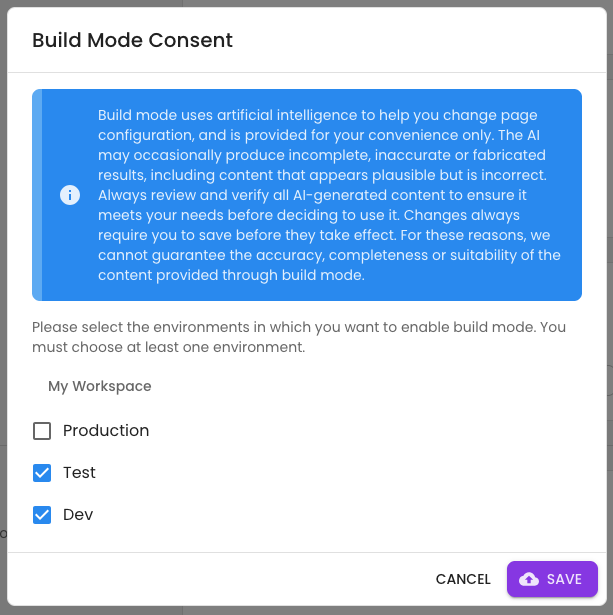
Build Mode allows users to change platform configurations on supported pages using Sage AI. AI-generated changes must still be reviewed and saved by the user before they are applied.
Using Sage
Sage can be opened from the Sage button in the OneBlink platform header.
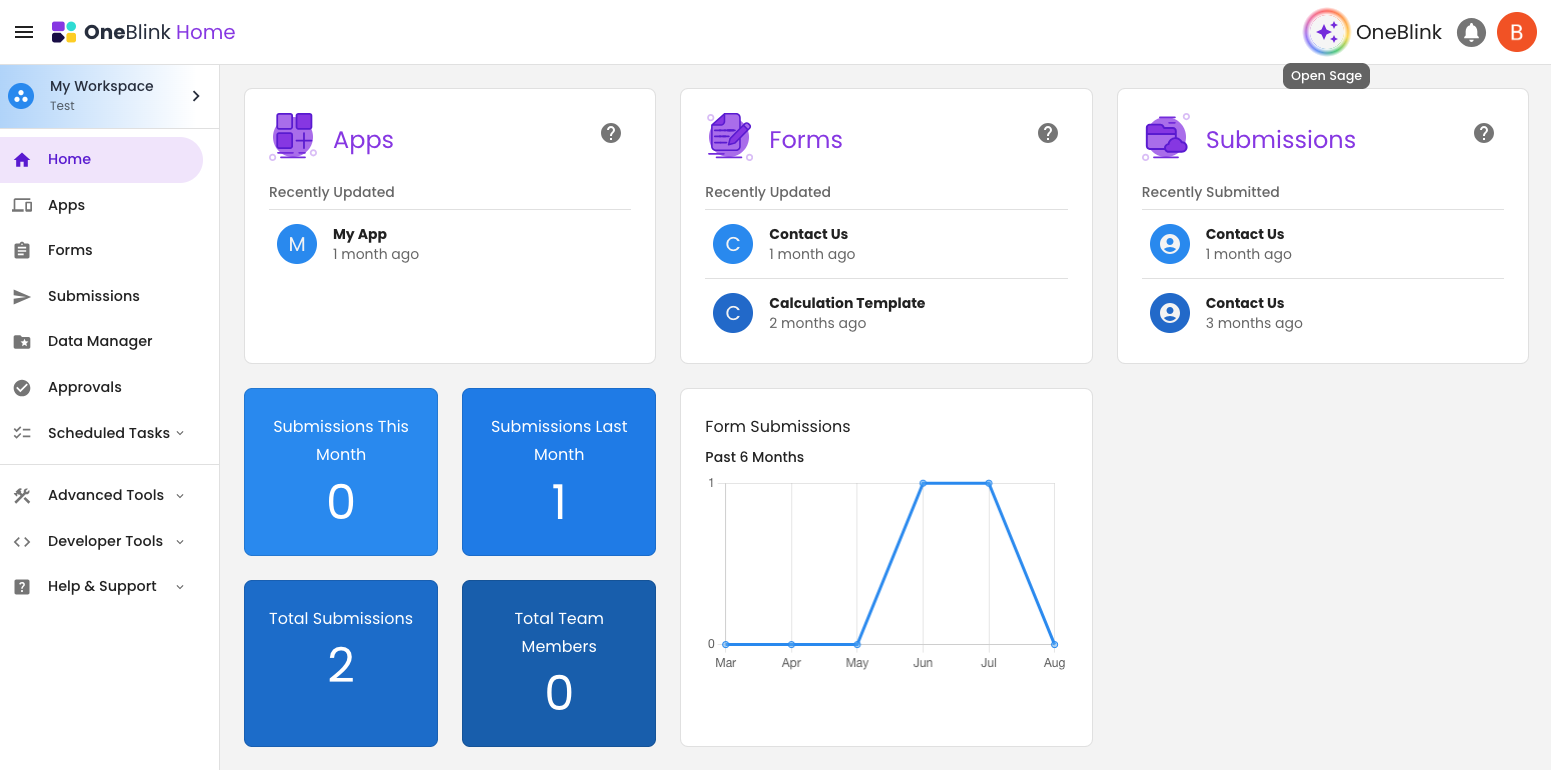
The functionality available within Sage changes depending on the page you are viewing.
For example, Help mode can provide guidance throughout the platform, while Build mode is only available on pages where Sage can create or modify supported content.
Help Mode
Help mode allows you to ask Sage questions about OneBlink without making changes to your configuration.
Sage uses the page you are currently viewing as context, helping it provide answers that are relevant to what you are working on.
You can use Help mode to:
- Ask how a OneBlink feature works.
- Understand terminology in plain language.
- Get guidance on how to achieve a particular outcome.
- Ask what you should do next when configuring something.
- Get help understanding the options available on the current page.
- Find relevant Knowledge Base information.
For example, while viewing a Workflow, you could ask:
"How can I send an email after this form is submitted?"
Or while viewing an Environment:
"What's the difference between an App and an Environment?"
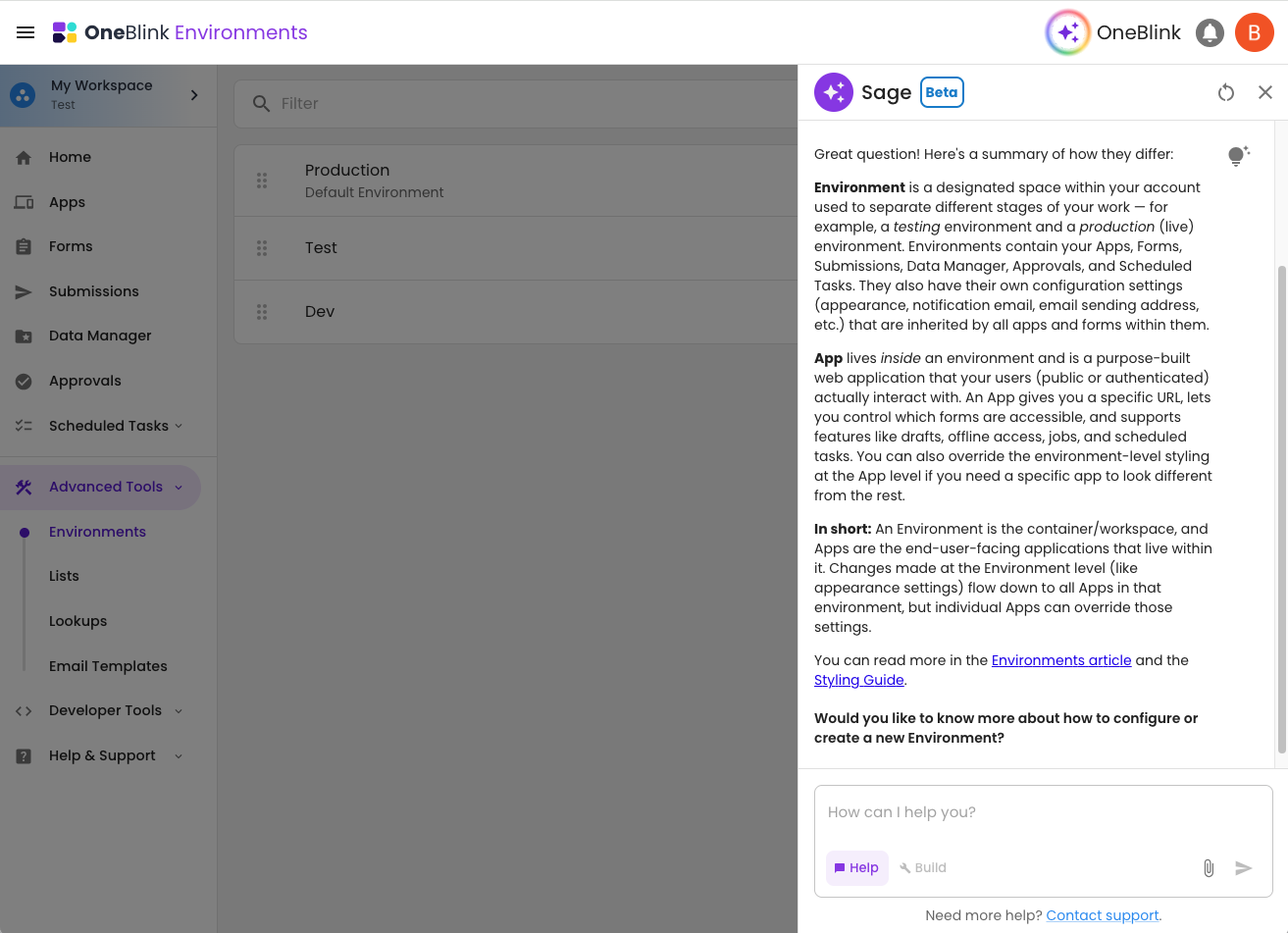
Help mode provides advice and guidance only. It cannot make changes to your forms, environments or other platform configuration.
If Sage cannot confidently answer your question, it may recommend consulting the Knowledge Base or contacting OneBlink Support.
Build Mode
Build mode allows Sage to create or modify supported OneBlink configuration.
Build mode is currently available for:
- Converting a PDF into a OneBlink Form.
- Building and updating Forms.
- Updating Environment Appearance settings.
Build mode is only available when:
- You are on a supported page.
- Build Mode has been enabled for the environment.
- The functionality is available for your account.
- You have permission to modify the content you are working with.
When Sage generates a change, always review the result before saving it.
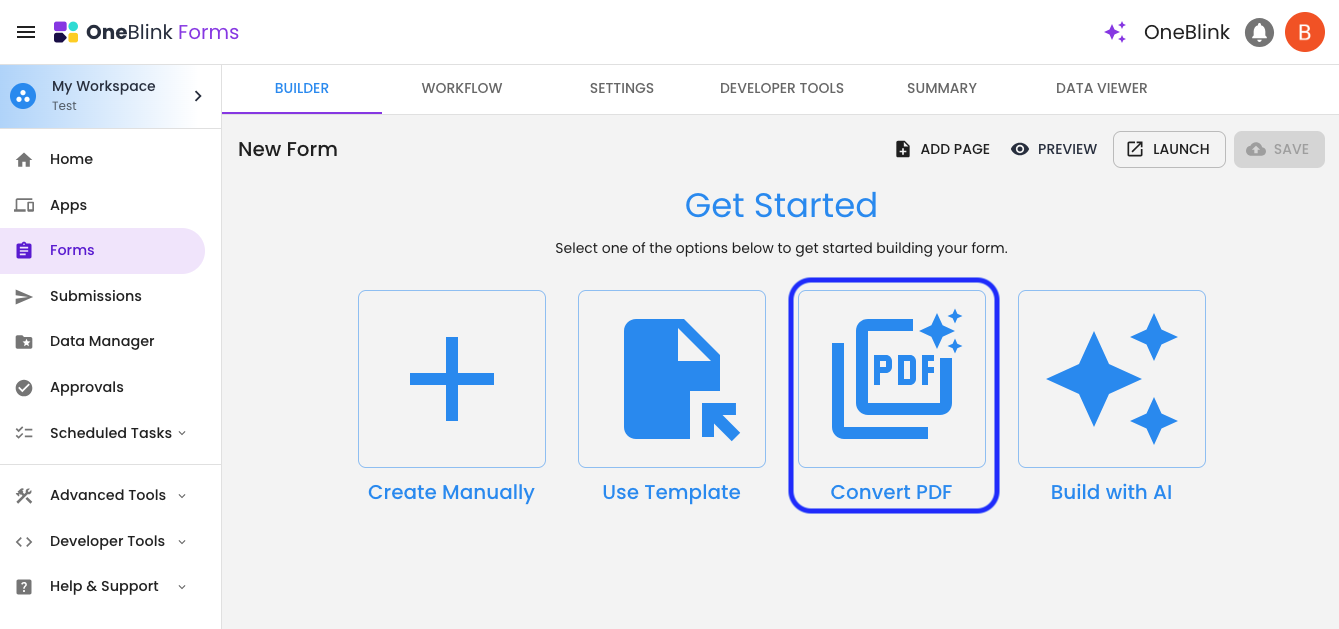
Convert PDF
Sage can convert an existing PDF form into a OneBlink Form.
From the Form Builder, select Convert PDF and choose the PDF you want to convert.
Only one PDF can be selected for a PDF conversion.
After selecting the file, Sage will open and begin creating the form automatically. You do not need to provide an initial prompt.
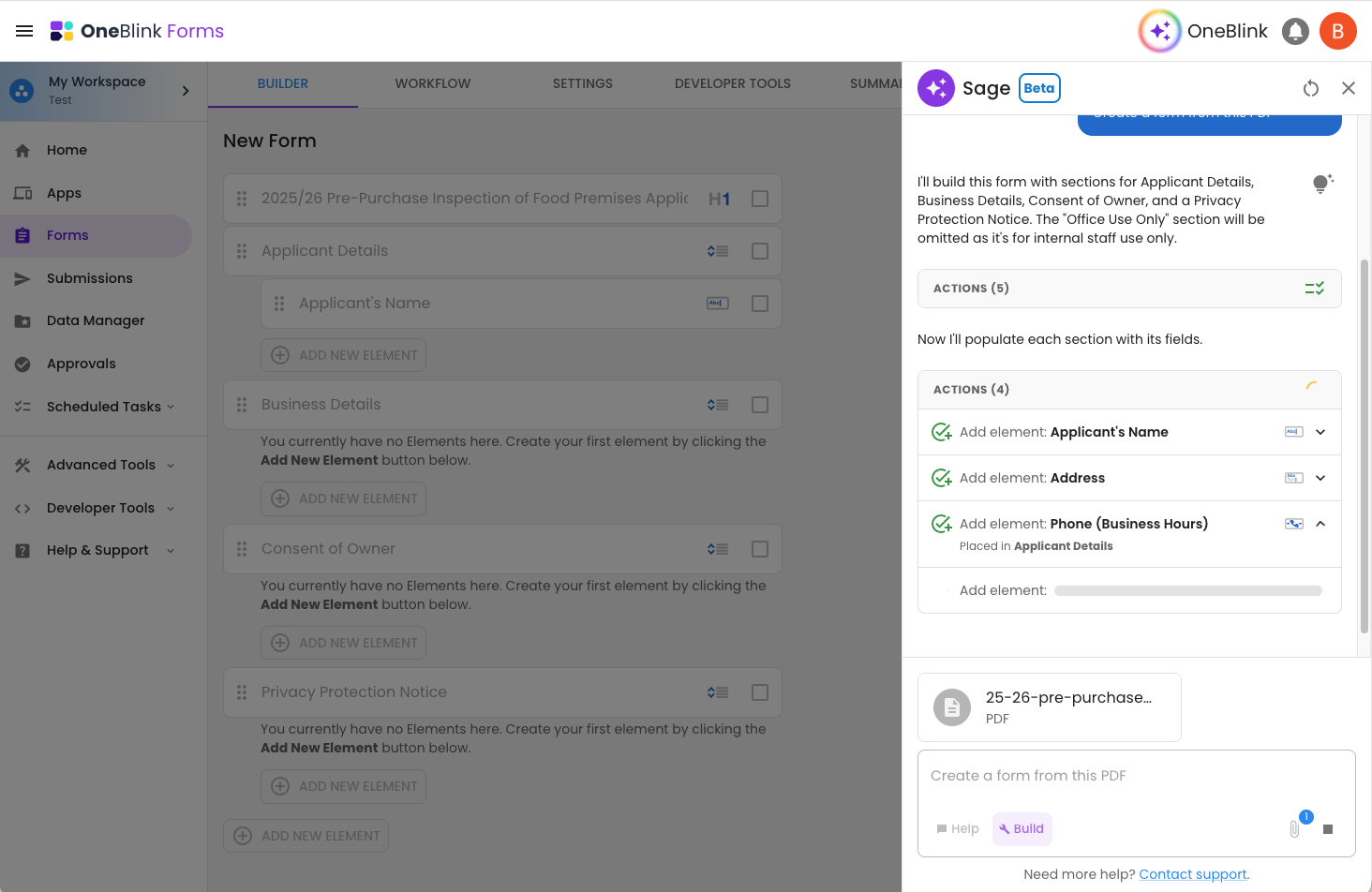
Once the conversion has finished, review the generated form and make any required changes before saving.
If the broader Form Building capability is available for your account, you can continue working with Sage after the conversion. For example, you could ask Sage to:
- Change particular questions.
- Add additional fields.
- Update validation.
- Reorganise sections of the form.
- Change field types.
Form Building
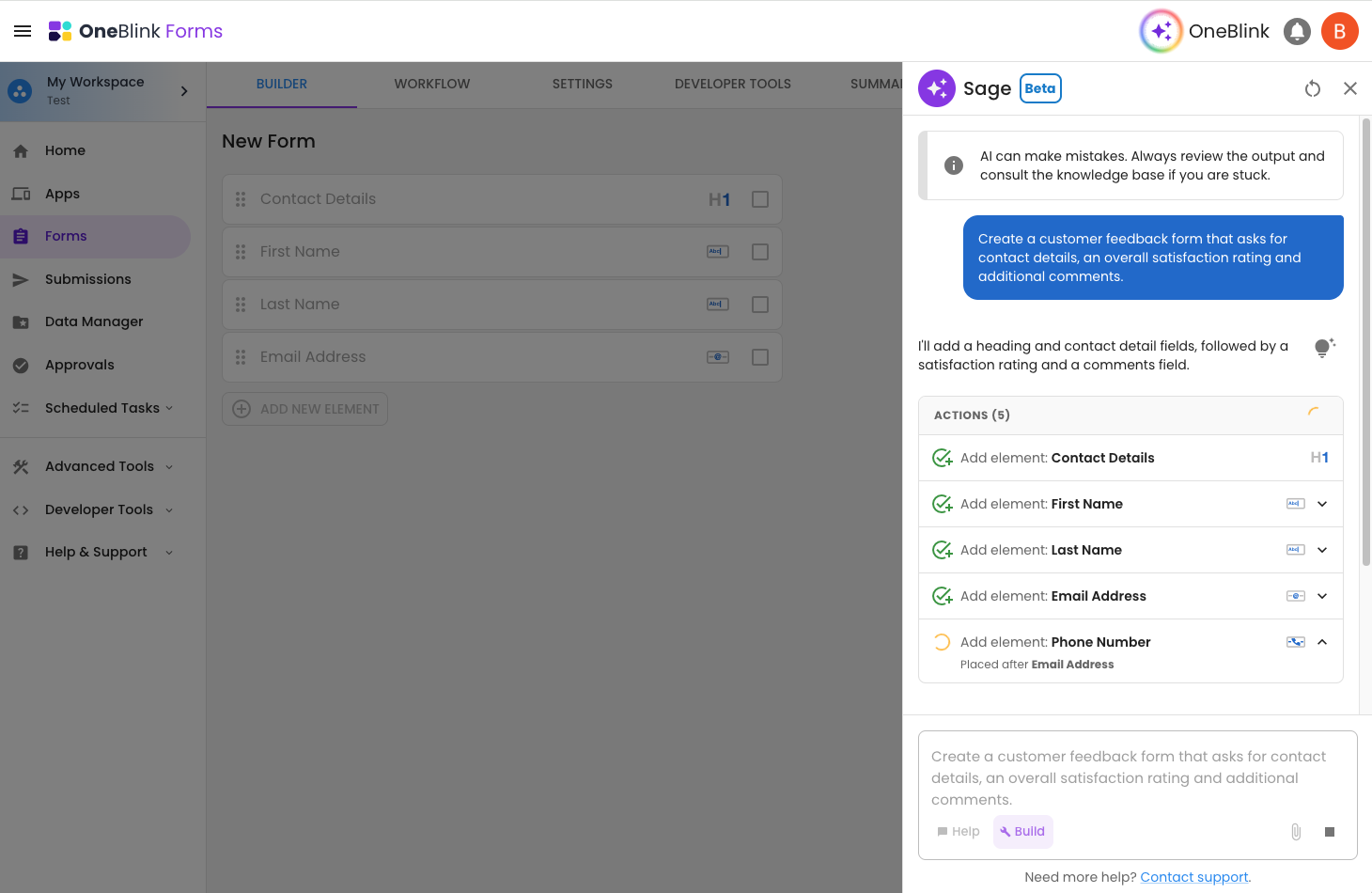
Sage Build mode can help you create new forms and make changes to existing forms using natural-language instructions. Instead of manually configuring each element, describe what you want Sage to create or change.
For example:
"Create a customer feedback form that asks for contact details, an overall satisfaction rating and additional comments."
Sage will generate the appropriate form configuration for you to review.
You can also provide files to help Sage understand what you want to build. Form Building supports uploading up to
5 PDF, PNG or JPEG files.
For example, you could provide an existing paper form or screenshot and ask Sage to recreate it as a OneBlink Form.
Sage can also modify an existing form. Open the form you want to change, open Sage and select Build mode. You can then describe the changes you want to make.
For example:
"Add a Yes/No question asking whether the applicant owns the property. If they select No, ask them to provide the property owner's name."
Sage uses the current form as context, allowing you to continue refining the form through conversation.
Always review the generated changes before saving your form.
Conversation History
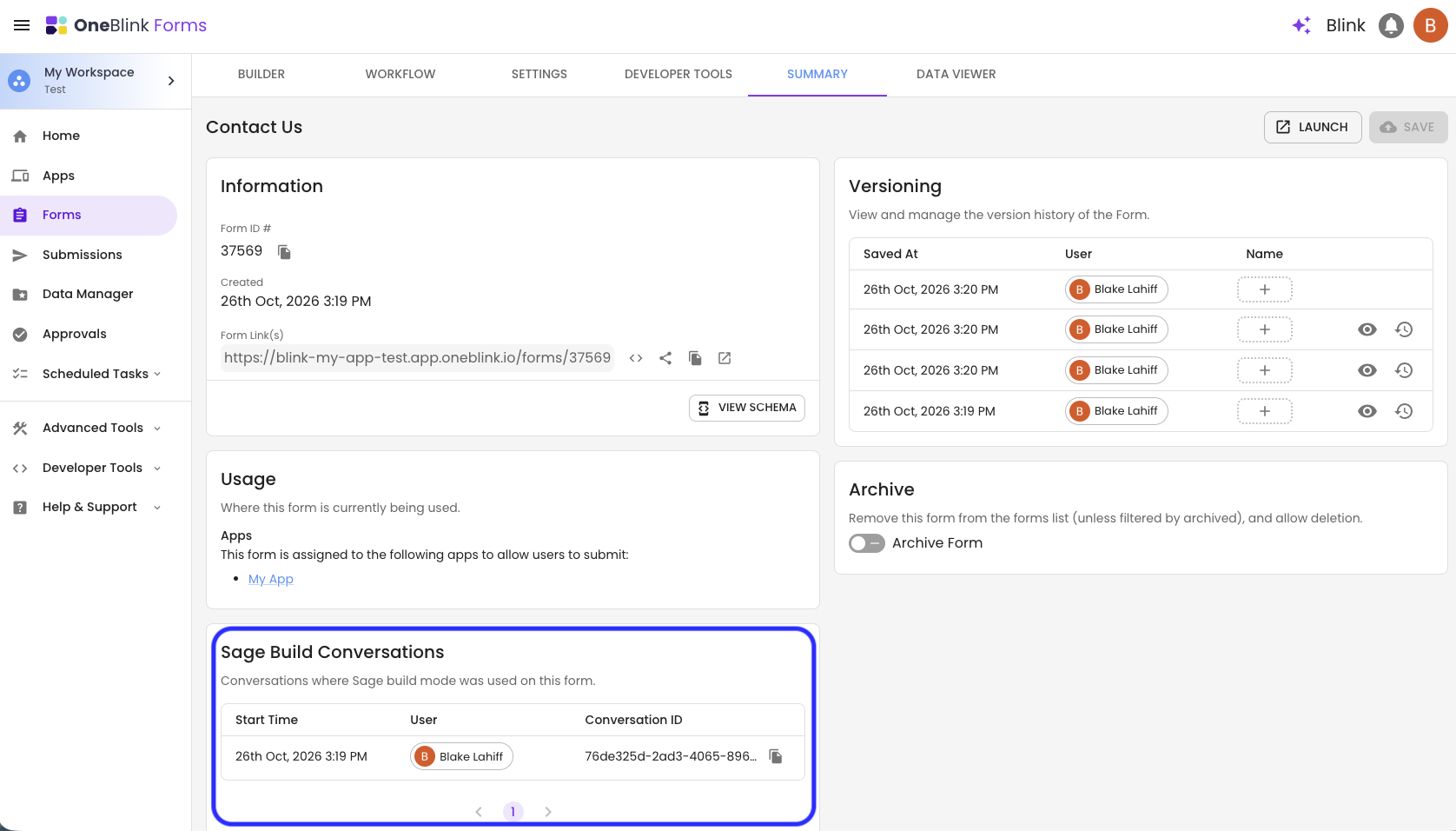
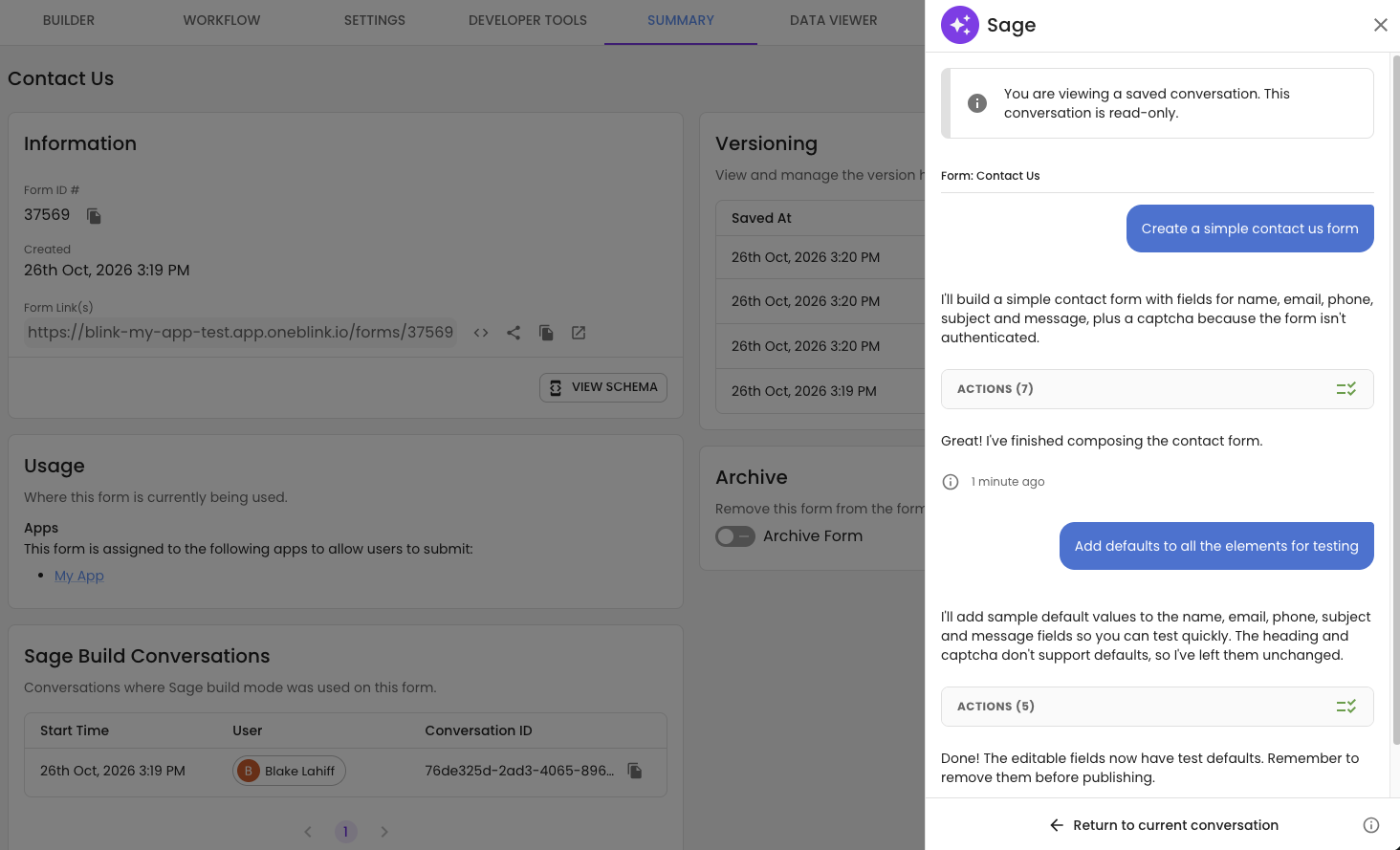
Conversation History allows team members to review previous Sage conversations that were used to build or modify a form. This can be used to understand how Sage helped develop a form, which changes were requested and who requested them.
Conversations are listed on the form's Summary tab, with the most recent conversation first. Conversations held before this feature was released are also included.
Step 1: Open the Form you want to review and navigate to the Summary tab.
Step 2: Find the [CONFIRM: card name] card. Each conversation shows the Start Time, the User who started the conversation and the Conversation ID. Conversations are loaded 10 at a time; use the paging controls to view older conversations.
Step 3: Click on a conversation to open it in the Sage chat.
Environment Appearance Styling
Sage Build mode can be used to update the Appearance configuration of an Environment.
To start modifying your Environment Appearance:
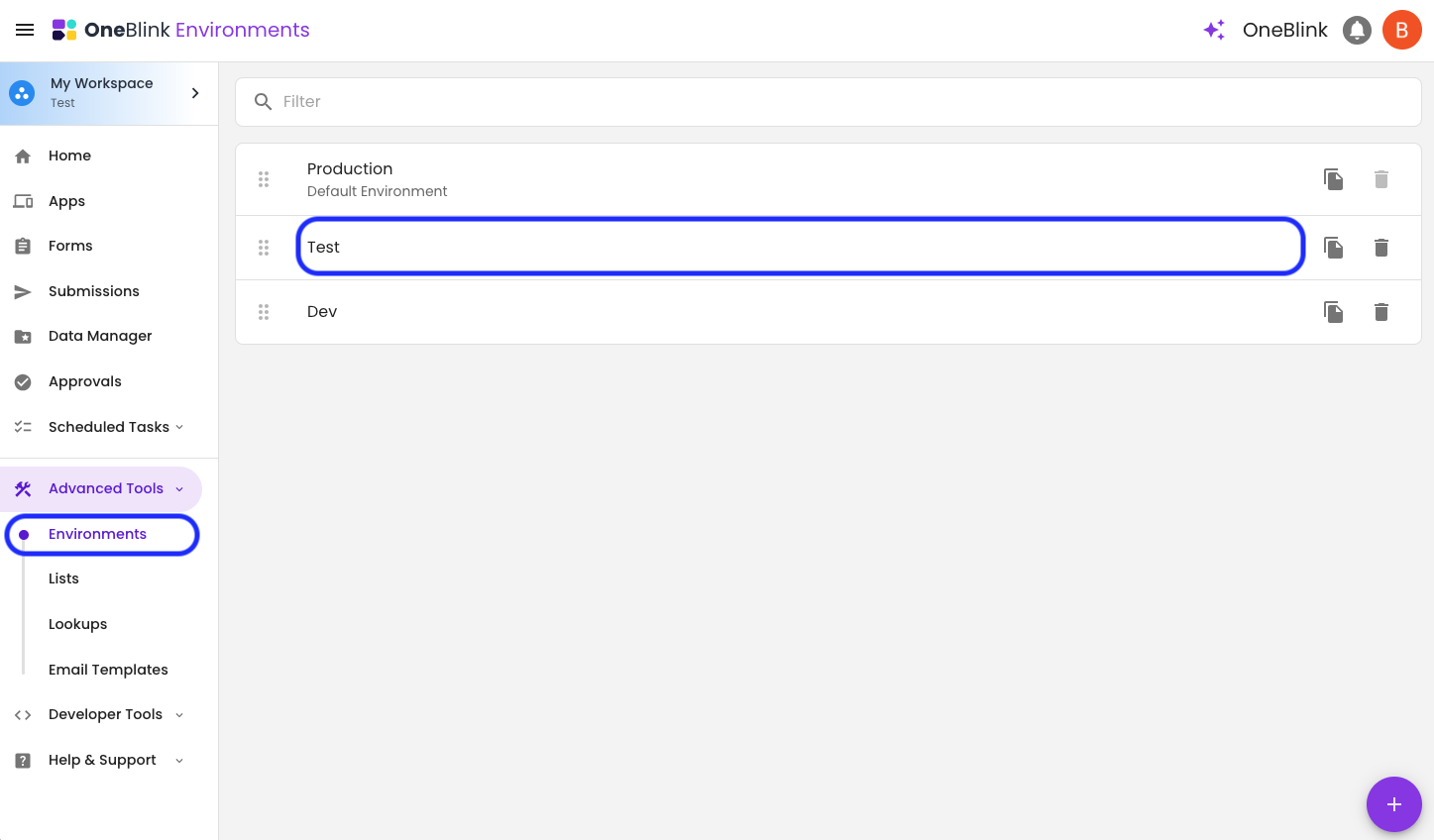
Step 1: Navigate to Environments from the side menu and select the Environment you want to modify.
Step 2: Navigate to the Appearance tab and open Sage.
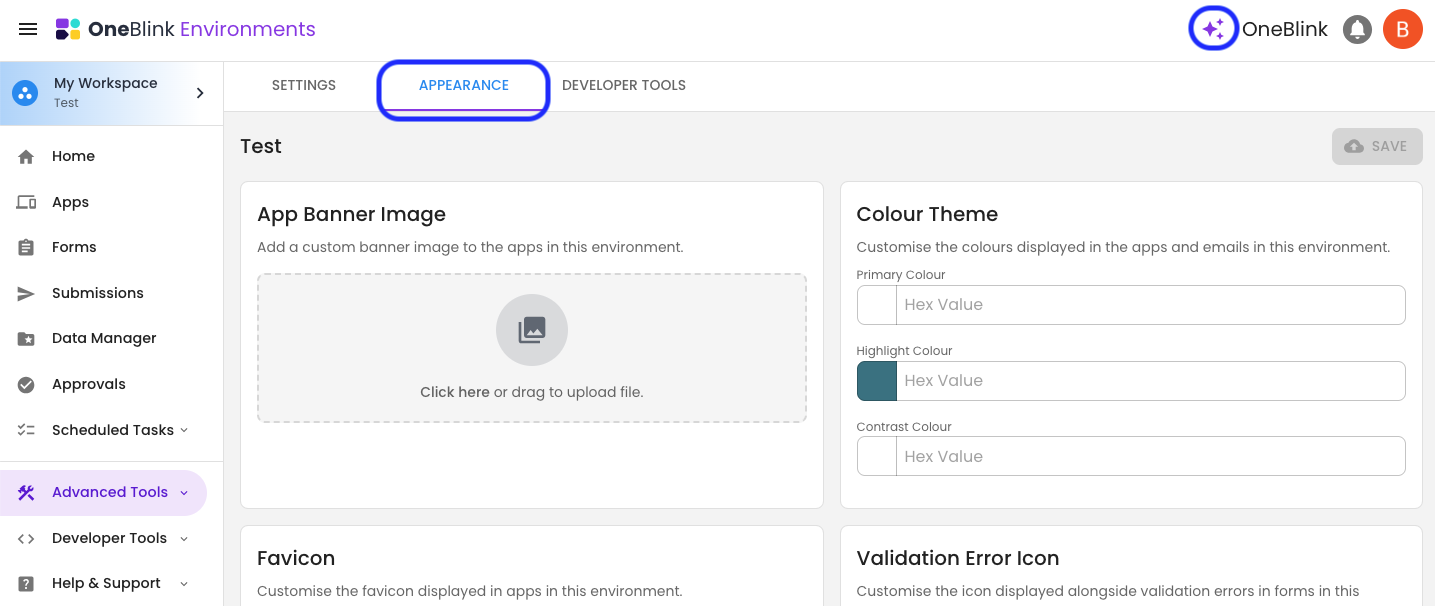
Step 3: Select Build mode and describe the appearance you would like Sage to create.
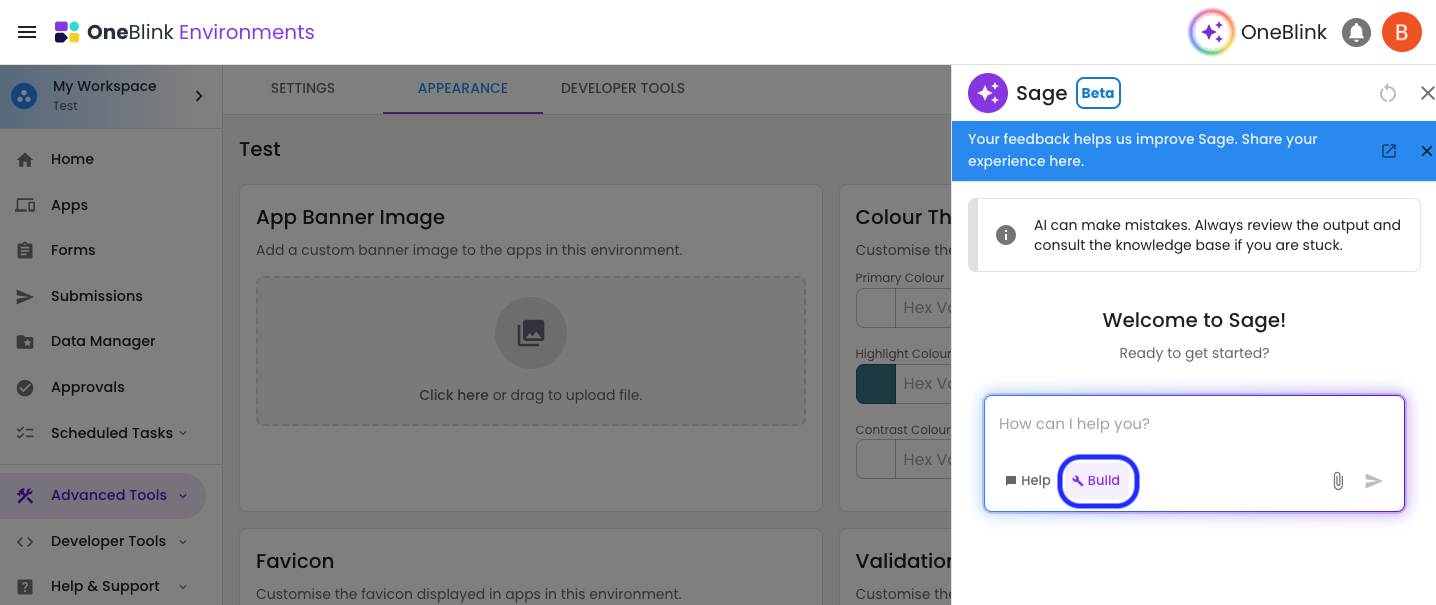
You can provide Sage with information in several ways, including:
- Describing the colours, typography and overall look you want.
- Uploading a PDF containing your brand or styling guidelines.
- Uploading screenshots or images for reference.
For example:
"Update this Environment to use our organisation's blue and white branding, with dark blue headings and rounded buttons."
Or:
"Use the attached branding guide to update the appearance of this Environment."
Sage modifies the standard Environment Appearance configuration rather than creating custom CSS. This means the configuration it generates remains visible and editable through the normal OneBlink interface.
For more information about the available configuration options, refer to the Environments Knowledge Base article.
FAQs
1. Does Sage meet OneBlink's data sovereignty requirements?
Yes. Sage uses AI functionality hosted within the existing tenant's AWS account and region. This allows the AI functionality to operate within OneBlink's existing hosting architecture.
2. What AI model does Sage use?
Sage's AI functionality is hosted using AWS Bedrock. The model used for individual Sage capabilities may change as the service is improved.
3. Why can't I select Build mode?
Build mode may be unavailable because:
- The current page does not support Build mode.
- Build Mode has not been enabled for the Environment.
- The feature is not available within your account configuration or pricing tier.
- Your Team Member permissions do not allow you to modify the resource.
4. What file types does Sage support?
For Convert PDF, you can upload a single PDF.
For Form Building and Environment Appearance Styling, Sage supports uploading up to 5 PDF, PNG or JPEG files.
5. Does Sage automatically save changes made in Build mode?
No. Always review the changes generated by Sage before saving them. Build mode assists you with creating the configuration, but you remain in control of whether the changes are saved.
6. Can Sage use a website when creating Environment Appearance settings?
You can provide a website URL as a reference. Sage cannot perform a live search of the website. Its understanding of the URL may therefore be unavailable or based on information that is no longer current.
For the most reliable results, provide your branding requirements directly or upload current styling guidelines.
7. Can Sage add custom CSS to an Environment?
No. Sage Build mode works with the standard Environment Appearance configuration. It does not add custom CSS.
This ensures the configuration created by Sage can still be understood and modified using the normal Environment Appearance settings.
8. What happens if I ask for a change while using Help mode?
Help mode will not make the change itself. Where the appropriate Build mode is available, Sage can suggest switching to Build mode. After you confirm, Sage can continue with your original request using Build mode.
Known Limitations
- AI-generated responses can be inaccurate: Sage may occasionally produce incomplete, inaccurate or unexpected results. Always review its responses and any generated configuration.
- Build mode is page-specific: Sage can only modify configuration on supported pages. Help mode remains available more broadly.
- Environment images: Sage cannot currently configure the App Banner or Favicon through Environment Appearance Build mode.
- Live website access: Sage cannot perform a live search of a website supplied as a styling reference.
- Custom CSS: Sage cannot create or add custom CSS to an Environment.
Sage Feedback
We are continually improving Sage and would love to hear about your experience.
You can provide feedback about Sage using the following form: Provide Sage Feedback
Get Help
If you need any assistance with Sage, please reach out through the Report Issue menu or email support@oneblink.io.
Was this article helpful?
That’s Great!
Thank you for your feedback
Sorry! We couldn't be helpful
Thank you for your feedback
Feedback sent
We appreciate your effort and will try to fix the article