The Lumin integration allows you to map form data to Lumin Sign templates and automatically request signatures from one or more recipients after a form is submitted. This can be used to send agreements, consent forms or authorisations for signing without anyone needing to prepare or send the document manually. Signers can sign in parallel or in a set order, based on how the template is configured in Lumin.
TABLE OF CONTENTS
Creating a Lumin Sign Template
Before setting up the workflow event, you will need a signing template in Lumin Sign. The template holds the PDF, the signer roles, the signing order and the fields each signer needs to complete.
Step 1: Open Lumin Sign and go to My templates → Create template. Upload the PDF you want to use.
Step 2: Select Add signer roles. Define roles such as Applicant and Approver, rather than particular people.
Step 3: Configure the signing order. Choose simultaneous signing or an ordered sequence.
Step 4: Place the signing fields on the PDF and assign them to the appropriate roles. For example, assign the applicant's signature field to Applicant.
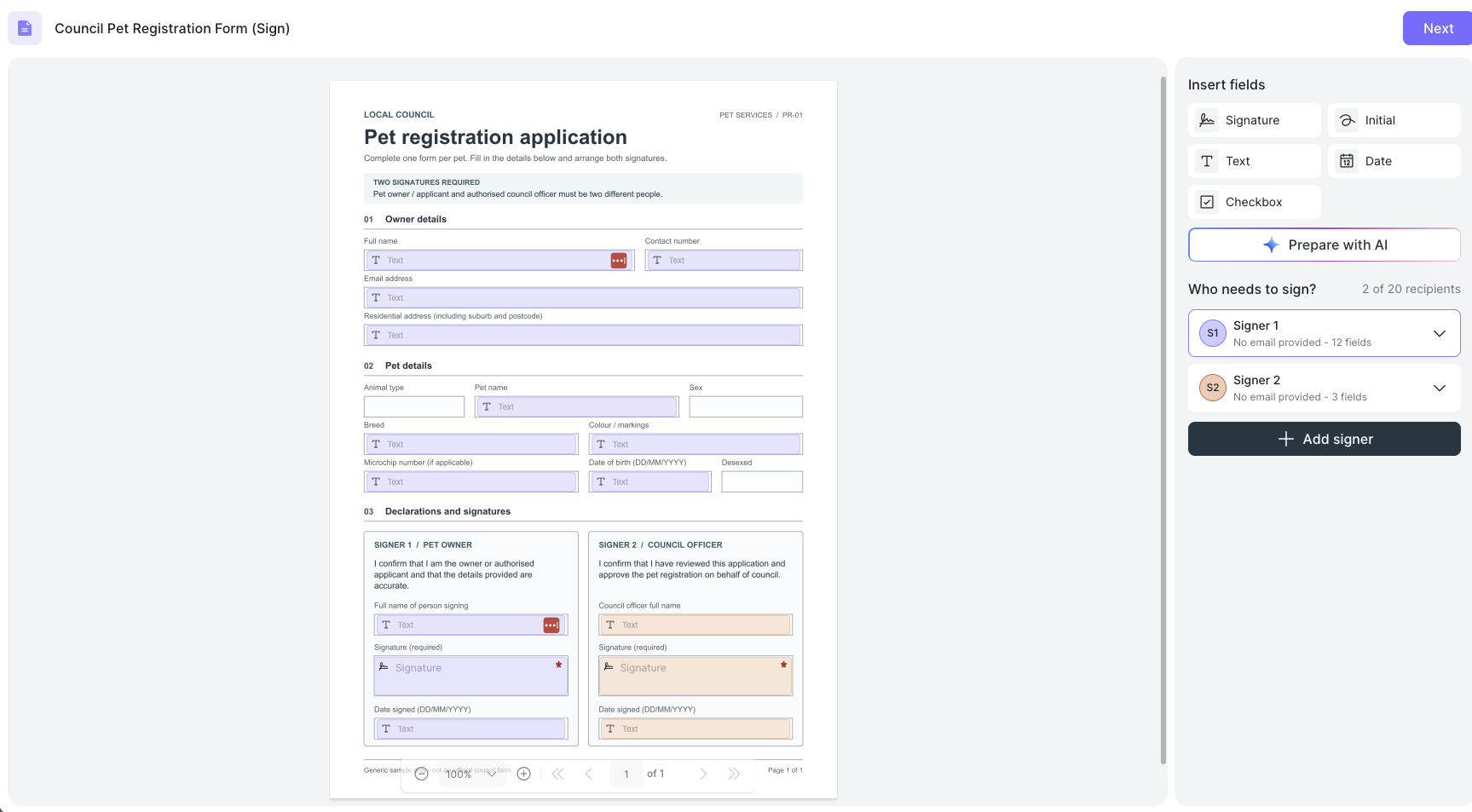
Step 5: Select Save template. This saves the reusable configuration; it does not send a request to anyone.
Note: Only Lumin Sign templates and Agreement templates can be used with this workflow event.
Integration Set-Up
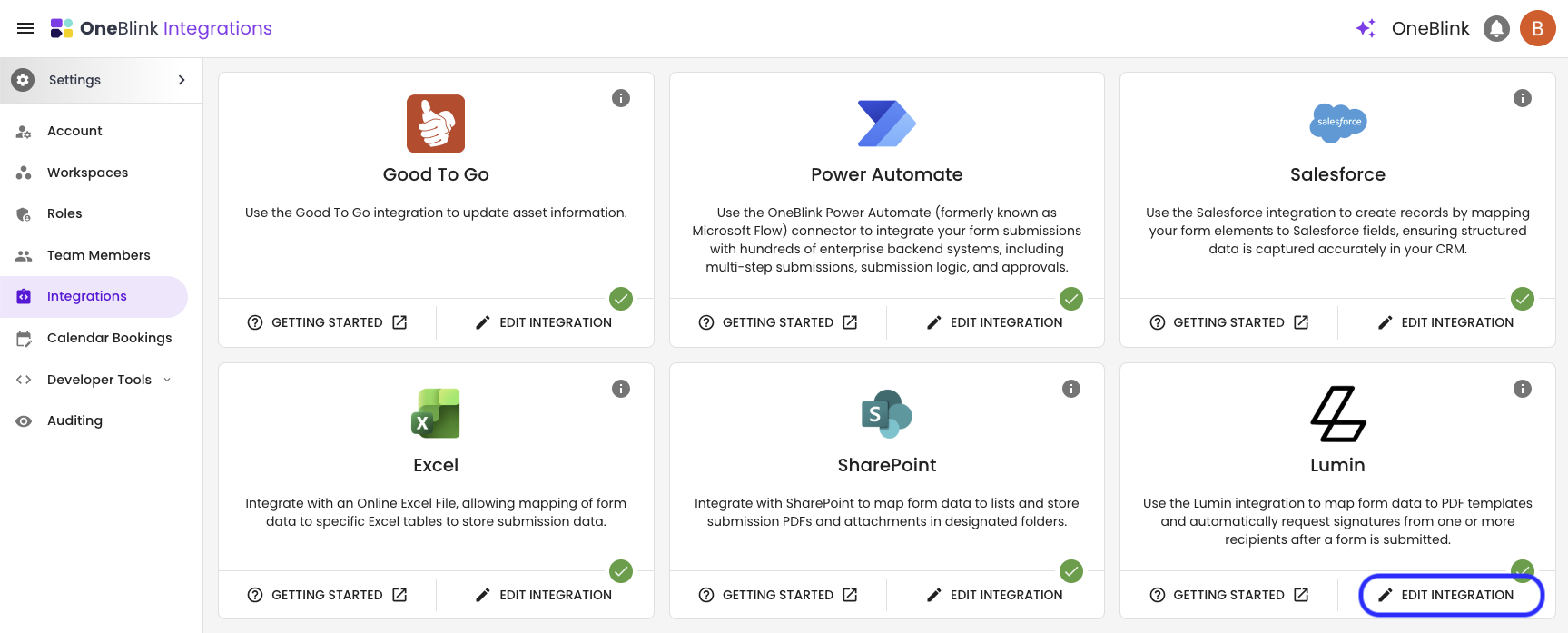
To connect OneBlink to Lumin, open the OneBlink platform and navigate to the Integrations menu. On the Lumin card, click the 'Edit Integration' button and enter the following:
- Label: A name to identify this Lumin connection, for example, the Lumin Workspace it connects to. The label is only required when adding more than one API Key.
- Lumin API Key: The API key generated in your Lumin account.
Lumin Sign – Request Signature
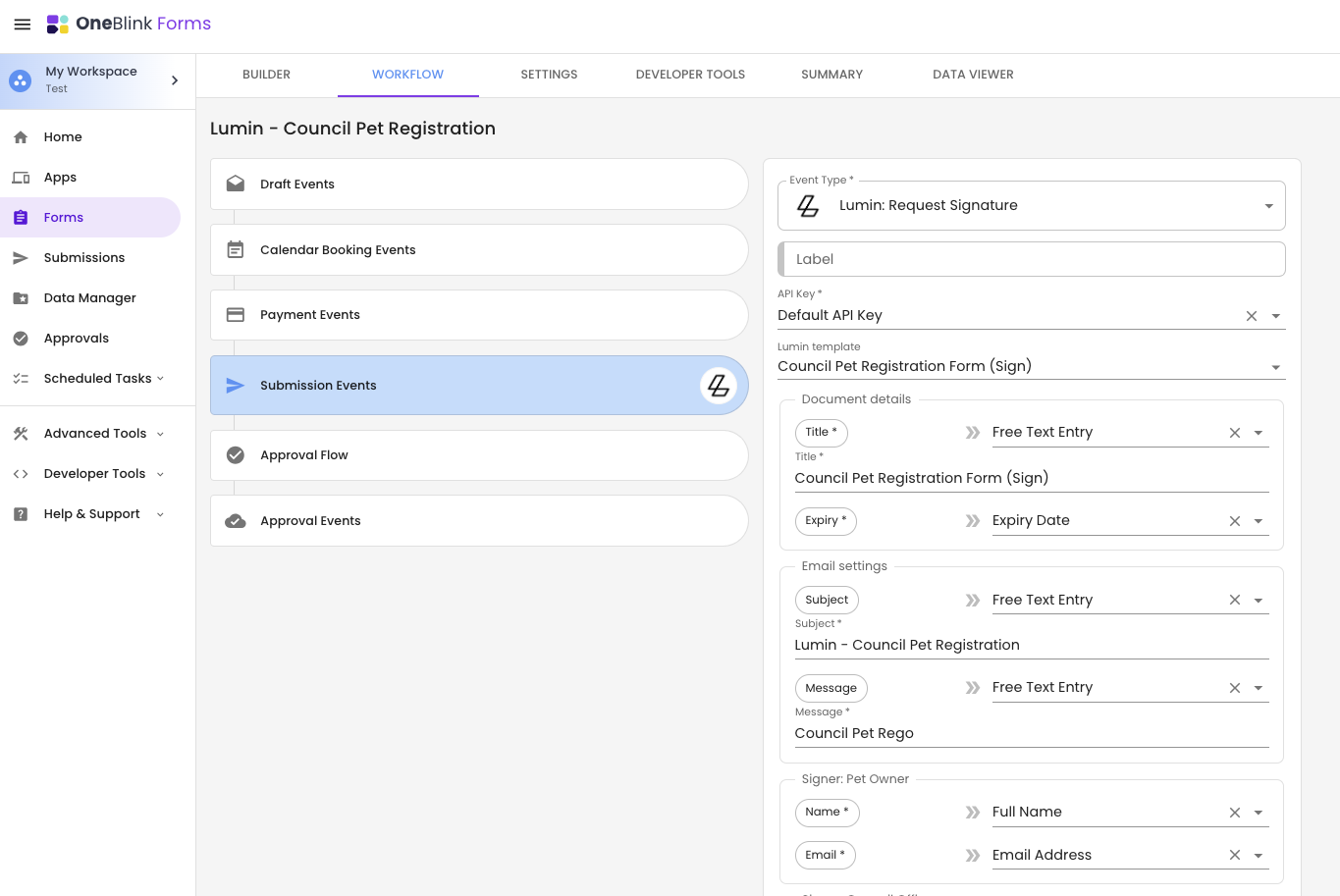
The 'Lumin Sign – Request Signature' workflow event will fill a Lumin Sign template with form submission data and send it to the configured signers. Lumin then emails each signer a link to the document and manages the signing process.
Workflow Event Configuration
- API Key: Select the Lumin API Key to use (if more than one is configured).
- Template: Select from the Lumin Sign templates available in your Lumin account.
- Document details
- Title: The name of the agreement shown to signers in Lumin.
- Expiry: The date the signing request expires.
- Email Settings
- Subject: The subject line of the email Lumin sends to each signer.
- Message: An optional message included in the email to signers.
- Signers: For each signer, set the Name and Email address.
- Form Fields: After selecting your template, the platform will pull in the template's fields and allow you to map form elements to them.
- Run Conditionally: This allows you to run the workflow event when specific conditions are met.
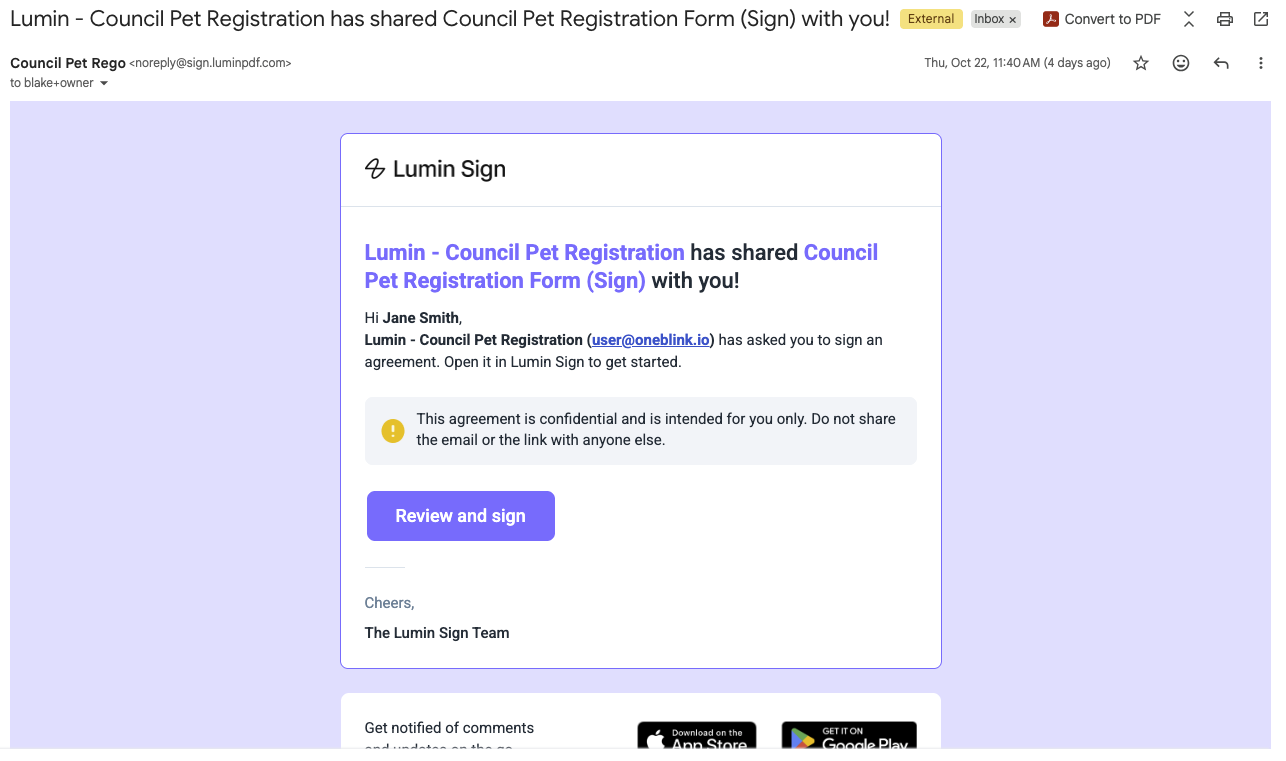
Now, when your form is submitted, the document is created in Lumin and each signer receives an email asking them to sign. The workflow event shows as successful in the submission's workflow status once the request has been sent to Lumin, or shows the error message if it could not be sent.
Get Help
If you need any help with Lumin Integration, please don't hesitate to reach out through the Report Issue menu or email support@oneblink.io.
Was this article helpful?
That’s Great!
Thank you for your feedback
Sorry! We couldn't be helpful
Thank you for your feedback
Feedback sent
We appreciate your effort and will try to fix the article