The Drupal integration lets you embed your public OneBlink forms into a Drupal website using the OneBlink Form Embed module, without copying and pasting the website script. Forms can be placed as a block in any region of your site, or added as a form field to a content type or paragraph type. For more information on embedding forms with the website script, check out the Embed Form into Webpage Article.
TABLE OF CONTENTS
Requirements
- A Drupal 10 or 11 website.
- A OneBlink account with at least one published form that does not require login.
Layout Builder is recommended if you want to place a form on a single page, and Paragraphs is recommended if you want to add a form within page content.
Adding a Form as a Block
This can be used for forms that always appear in the same place, such as a contact form in a sidebar.
Step 1: Navigate to Structure → Block layout and click "Place block" next to the region you want the form to appear in.
Step 2: Choose "OneBlink Form" from the Block category.
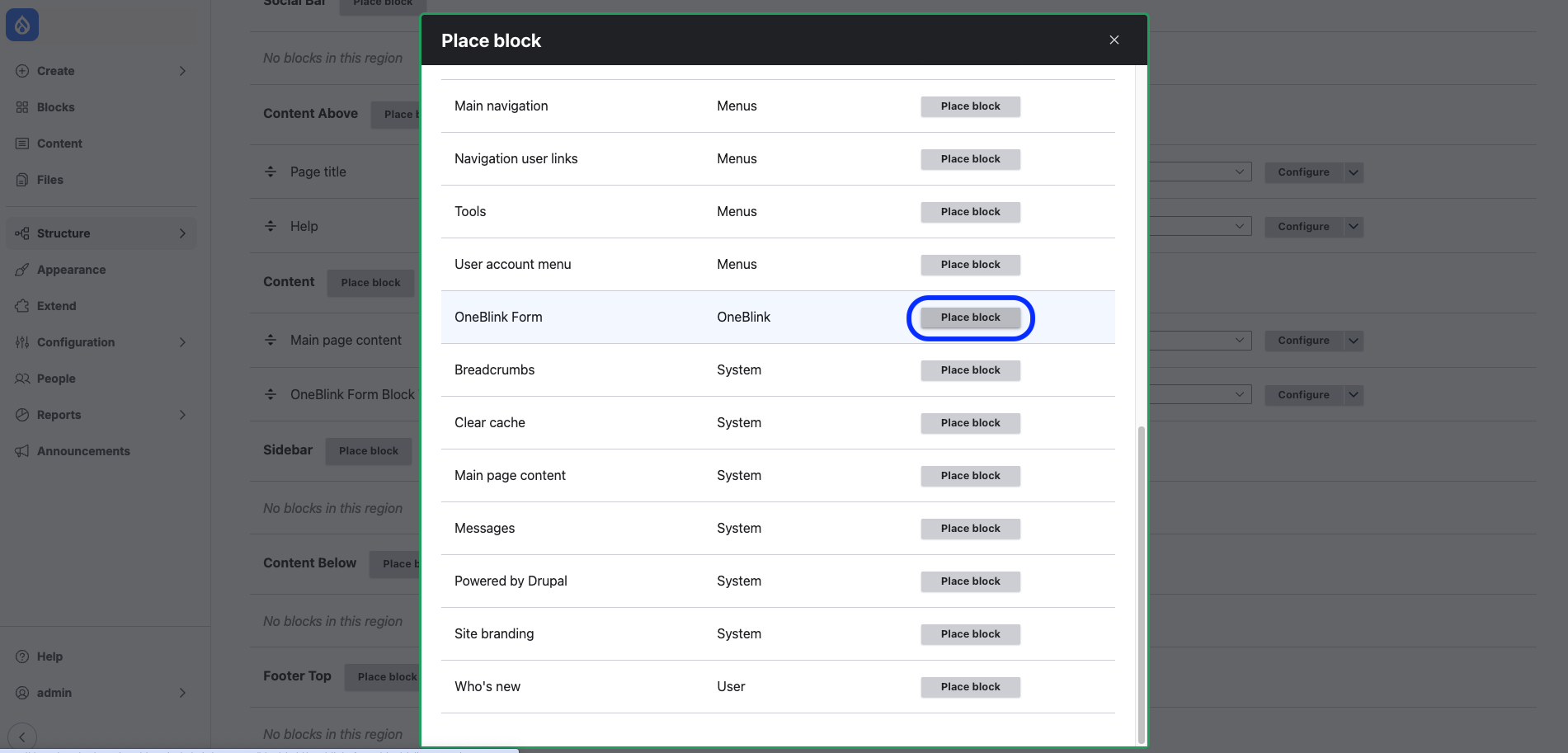
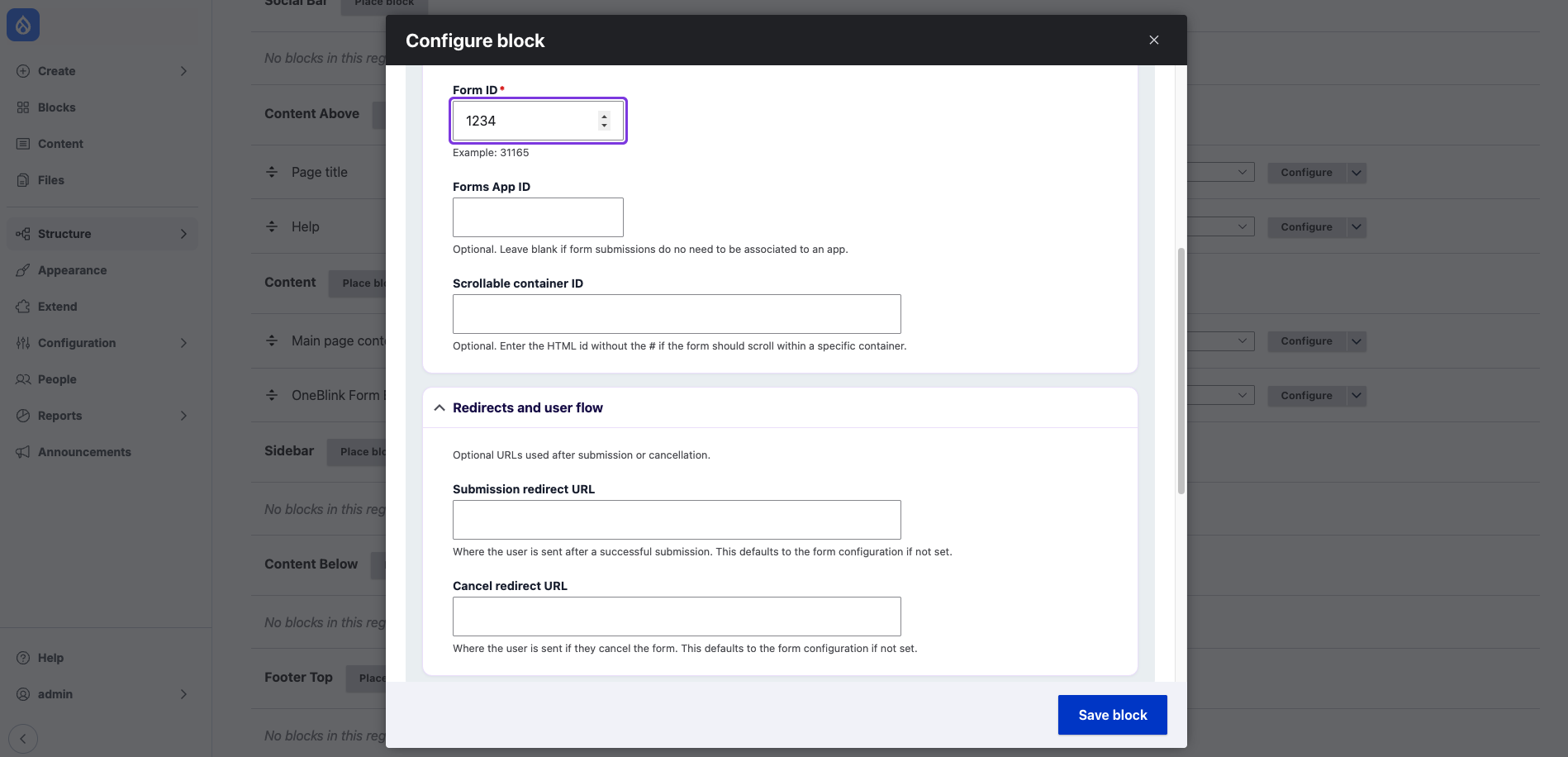
Step 3: Enter the Form ID and any optional settings, then save the block. For more information on each setting, see Form Settings below.
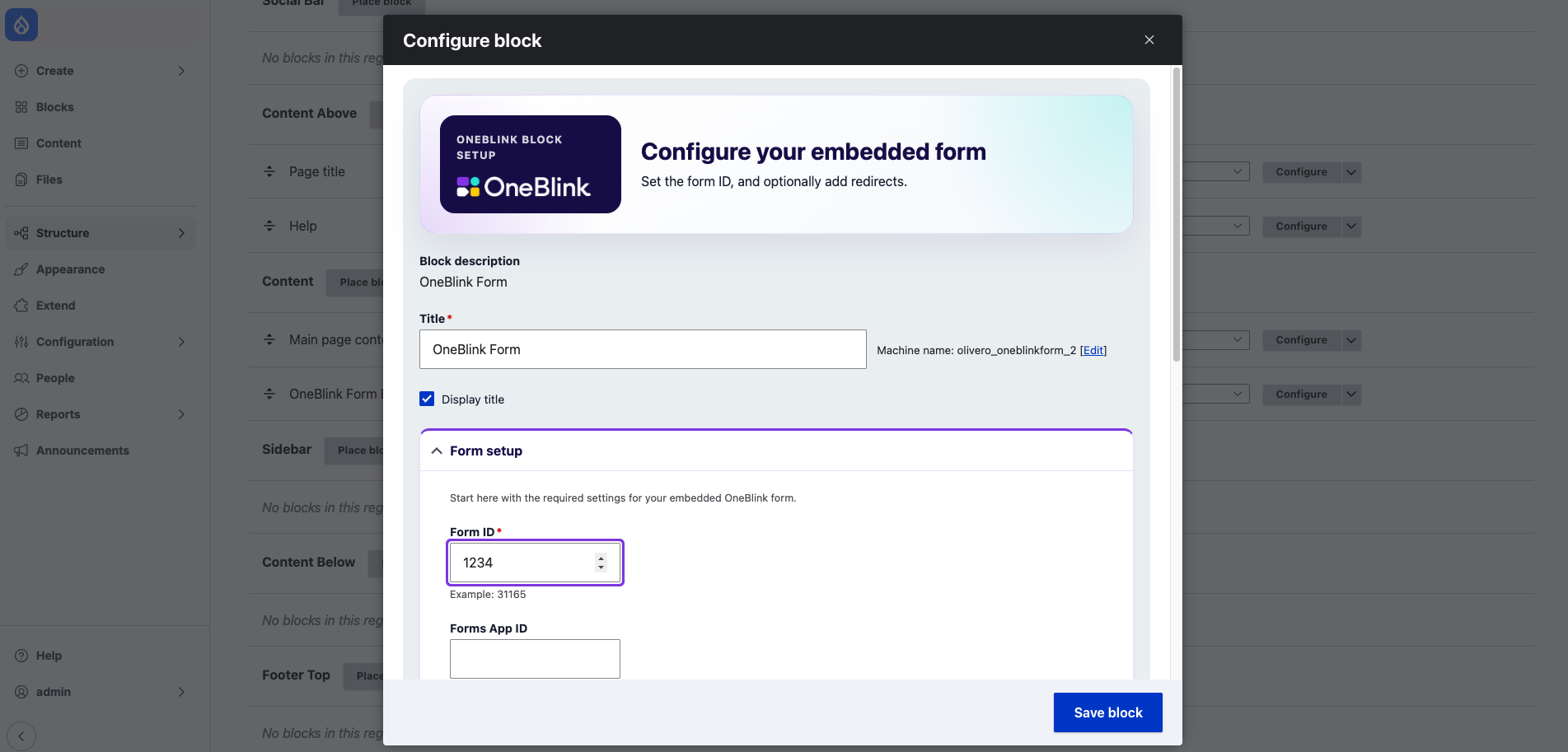
Step 4: Click Save block
Adding a Form as a Field
This can be used when editors need to choose a different form for each page.
Step 1: Navigate to Structure → Content types (or Paragraph type) and click "Manage fields" on the type you want to add the form to.
Step 2: Add a field and select the "OneBlink form" field type.
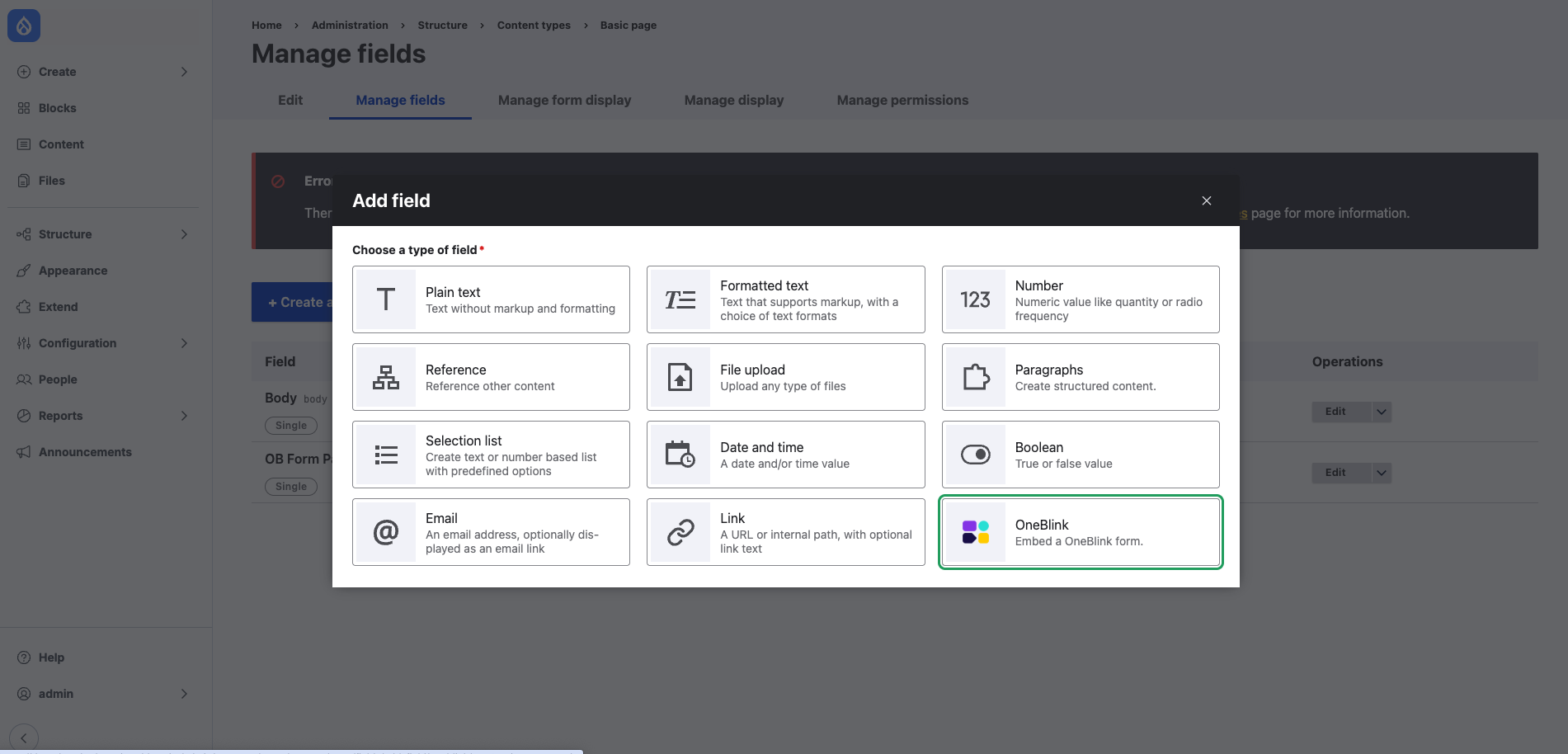
Step 3: Add a label, select OneBlink Form as your field type and click Continue.
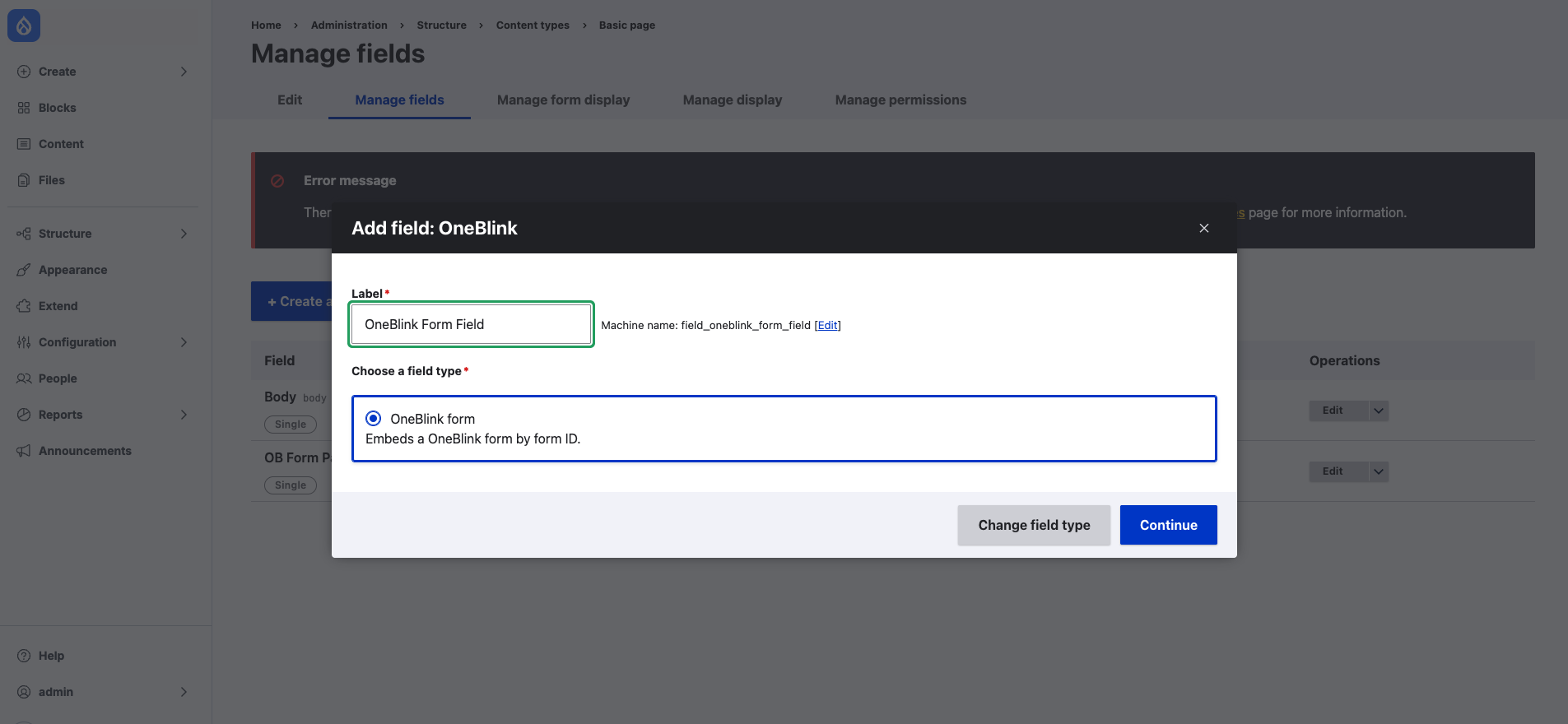
Step 4: Add any field-specific settings.
Step 5: When creating or editing content of that type, enter the Form ID and any optional settings in the field.
Form Settings
The same settings are available on the block and the field.
- Form ID: (required) The ID of the OneBlink form to display. You can find it on the Form Summary tab of the OneBlink platform.
- Forms App ID: (Optional) You can find it on the App Summary tab of the OneBlink platform.
- Submission redirect URL: (Optional) The page users are sent to after they submit the form. If left blank, the form's submission redirect URL is used.
- Cancel redirect URL: (Optional) The page users are sent to if they cancel the form. If left blank, the form's cancel redirect URL is used.
- Scrollable container ID: (Optional) The HTML id of the scrollable container.
Getting Help
If you need any assistance with the Drupal Integration, please reach out through the Report Issue menu or email support@oneblink.io.
Was this article helpful?
That’s Great!
Thank you for your feedback
Sorry! We couldn't be helpful
Thank you for your feedback
Feedback sent
We appreciate your effort and will try to fix the article