The Salesforce integration allows you to map form elements to Salesforce fields and push Form submission PDFs into Salesforce.
TABLE OF CONTENTS
Integration Set Up
To start using the OneBlink Salesforce integration, you will need the following information:
Instance URL (i.e. https://yourOrganisation.my.salesforce.com)
Consumer Key
Consumer Secret
For steps on how to get these, follow the instructions in the link below to configure an External Client App
Important: When configuring the External Client App, ensure the OAuth scope “Manage user data via APIs (api)” is selected. This scope is required for OneBlink to access Salesforce data via REST APIs. Without it, API requests will fail even if authentication succeeds.
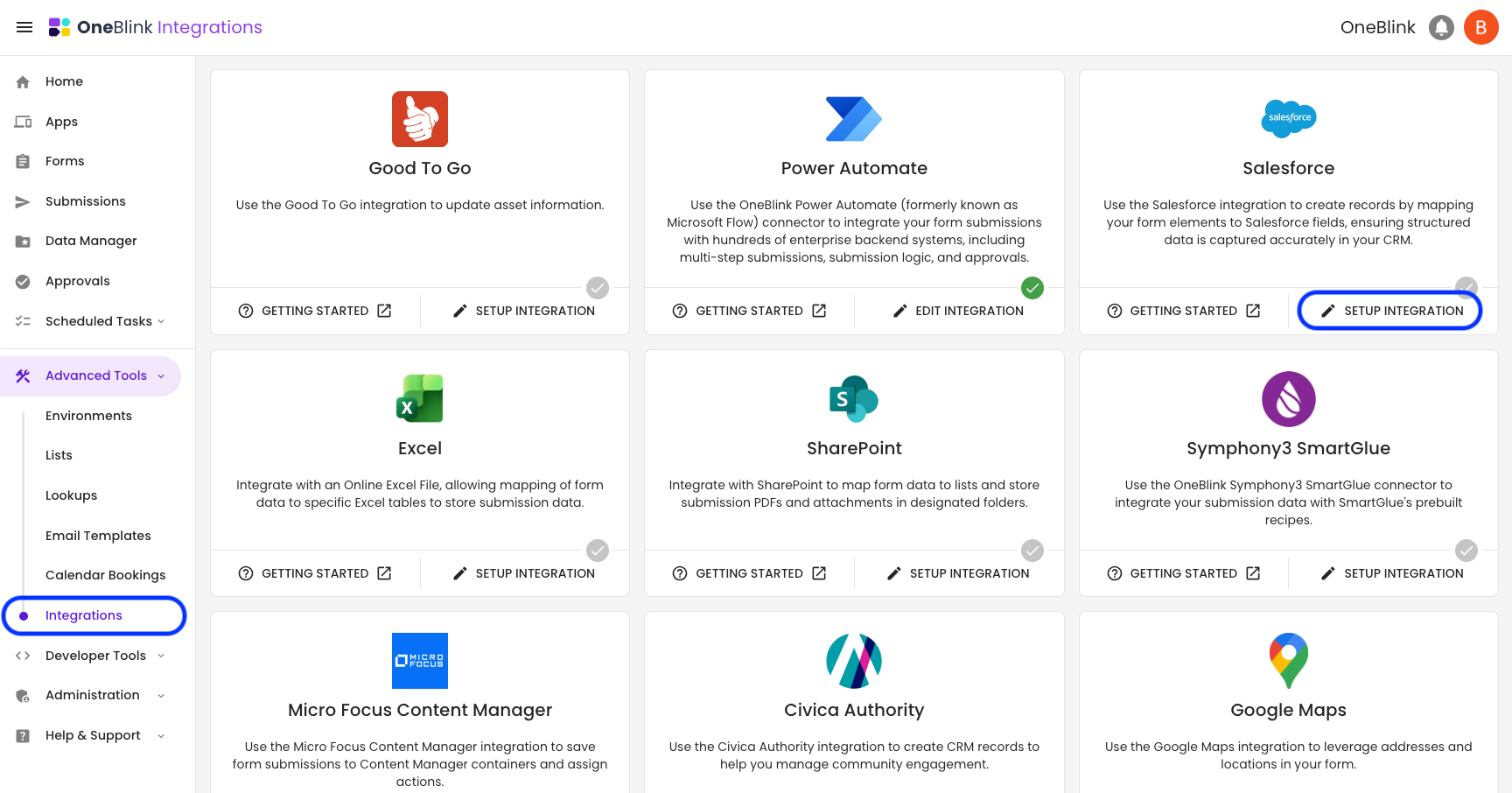
Once you have your Instance URL, Consumer Key, and Consumer Secret, open the OneBlink platform and navigate to the Integrations menu. On the Salesforce card, click the ‘Setup Integration’ button.
Workflow Events
With the integration card set up, you can now use the Salesforce workflow event.
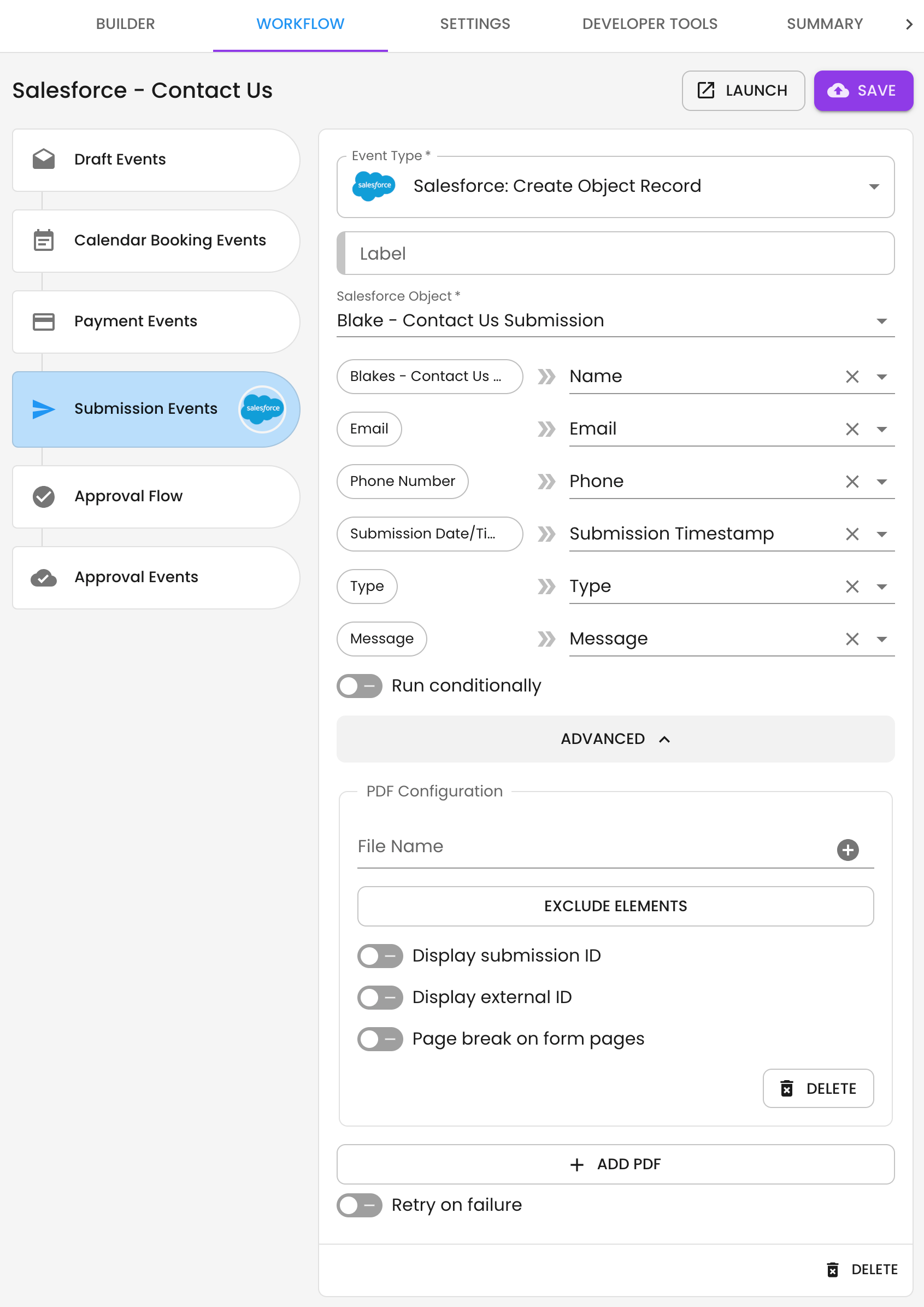
Salesforce: Create Object Record
The 'Create Object Record' workflow event will allow you to link to an existing Salesforce Object and add new records on form submission.
Workflow Event Configuration
- Salesforce Object: Choose a default or custom object by searching on the object name.
- List Mapping: After selecting your object, the platform will pull in all of the object fields and allow you to map them to your form elements.
- If you are mapping a Salesforce Picklist field, check out the Salesforce Picklist integration here: Lists Article
- Run Conditionally: This allows you to run the workflow event when specific conditions are met. For more, check out this article.
Advanced
PDF Configuration
If you want to add a PDF to the Salesforce integration, you can use the + Add PDF button.
For more information, see the Submission PDF article.- Retry on failure: Allow the platform to attempt to retry calling your Salesforce instance if there are issues on the first attempt.
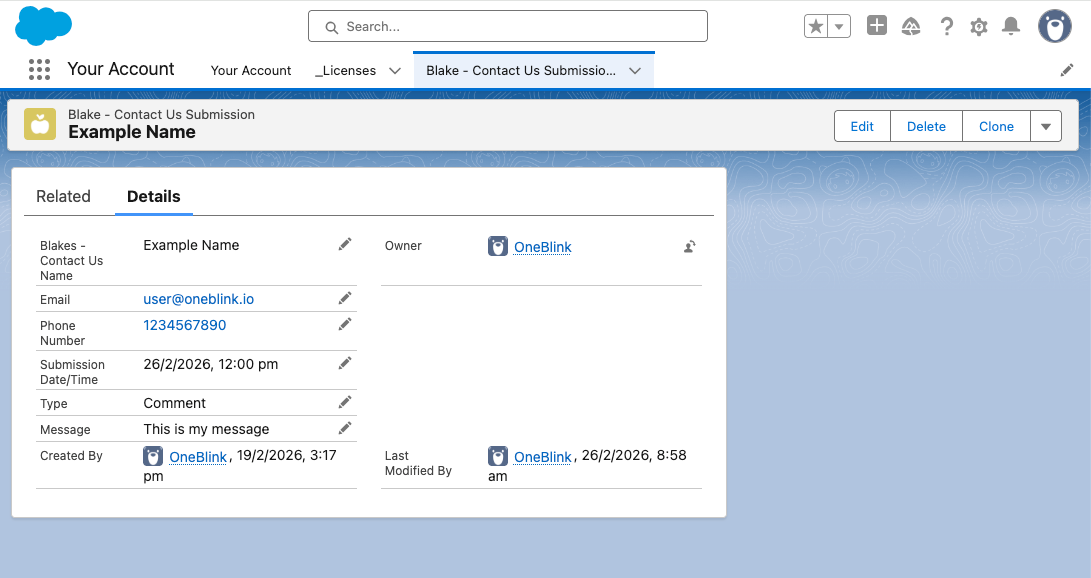
Now, when your form is submitted, the form data will create a new object record and map the form data to fields.
Get Help
If you need any help with Salesforce Integration, please don't hesitate to reach out through the Report Issue menu or email support@oneblink.io.
Was this article helpful?
That’s Great!
Thank you for your feedback
Sorry! We couldn't be helpful
Thank you for your feedback
Feedback sent
We appreciate your effort and will try to fix the article